
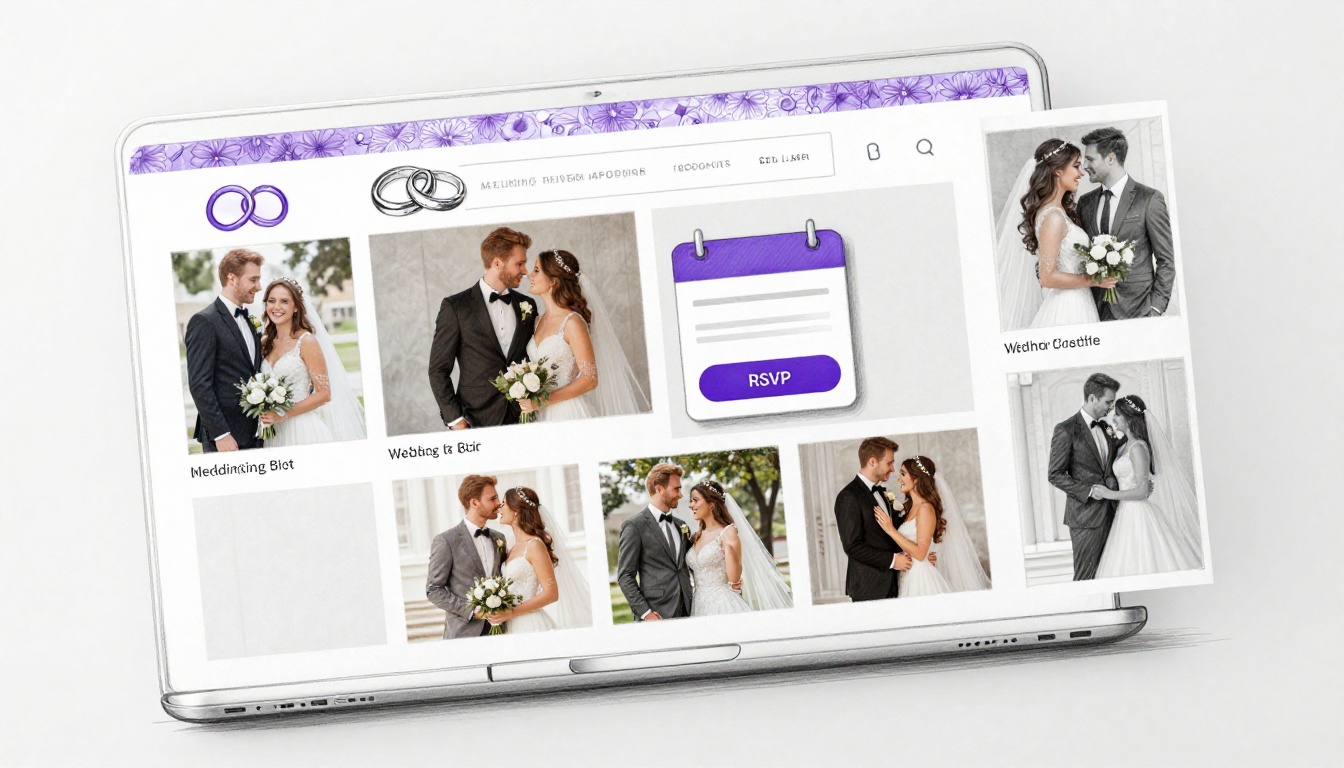

When I need to put together a wedding website fast, I don’t build every page from scratch. I start with WordPress, a solid theme, and a wedding template, then I swap in the couple’s photos, date, story, RSVP form, and venue details.
That approach gives me a site that looks polished without turning the project into a week-long job. If you want a wedding website that guests can use on their phones and RSVP to in minutes, this is the setup I use. For a broader look at how I build sites with this same stack (SiteGround, Astra, and Elementor), see my WordPress website build guide.
I start with the domain and hosting
The first thing I set up is the domain name and hosting. The domain is the address guests type in, such as the couple’s names joined together, while hosting is the space that keeps the site online. I like to pick a domain that is short, easy to spell, and easy to text to family members who may not be very tech-savvy.
For a wedding website, I don’t overcomplicate the name. A simple choice like sallyandmark.com or janeandjohnwedding.com works well because guests can remember it. If the couple already owns a domain, I use that. If not, I register a new one and keep the extras to a minimum.
SiteGround is the platform used in this build, and the main choice comes down to how simple or flexible I want the project to be. This quick comparison shows how I think about the plans:
| Plan | When I would pick it | Why it makes sense |
|---|---|---|
| Startup | I only need one wedding website | It covers a single site without extra overhead |
| GrowBig | I want a staging site or might build more later | I can test edits privately before pushing them live |
| GoGeek | I need more resources than a normal wedding site | Most wedding sites won’t need this much |
For most weddings, Startup is enough. I lean toward GrowBig when I want the safety of a staging site, especially if the site is live and I still need to make changes. That way, I can edit privately and publish the finished version later.

I also pay attention to the hosting term. If the wedding is close, a short term can work. If I want the site live before the wedding and still available after the event for photos or thank-you notes, a longer term makes more sense. Some add-ons show up during checkout, but for a basic wedding site, I usually only care about the domain itself. If I wanted to compare another managed WordPress option later, I could look at this 10Web AI website builder review.
I install WordPress and clean up the basic settings first
Once the hosting account is ready, I install WordPress from the hosting dashboard. In SiteGround, that happens inside the Site Tools area. I choose the standard WordPress install, not WordPress with WooCommerce, because this project is a wedding website, not an online store.
During setup, I keep WordPress in the main folder instead of a subfolder. That keeps the URL clean. I also create the admin username, password, and email at this stage. If I ever forget where to log in later, I use my site’s /wp-admin path.
If I’m on the GrowBig plan, this is also the point where I can create a staging site. I like that option because I can redesign the homepage, test links, or replace photos without showing half-finished edits to guests.
After WordPress is installed, I always fix a few settings before I touch the design:
- I update the site title and tagline
- I set the correct time zone
- I save the permalink structure as “Post name”
That last setting matters more than many beginners realize. A clean URL looks better, is easier to share, and avoids unnecessary date-based links. I also check the week start day and the admin email so the site behaves the way I expect.
At this stage, the site will still look plain. That’s normal. WordPress starts with a basic default theme, and I don’t worry about that because the next step changes the whole look of the site.
I add Elementor and Astra so I don’t have to design everything from zero
I treat WordPress plugins like apps for a phone. They add the features I need, and for this project the big one is Elementor. Elementor is the page builder that lets me drag sections, text, images, buttons, maps, and forms into place without writing code.
I install the free version first because it’s enough for this wedding build. Elementor Pro adds more widgets, but I don’t need the paid version to create a clean homepage, story section, RSVP button, gallery, and extra pages.
After that, I install the Astra theme. Astra is the framework under the design, and it makes the starter templates easy to import. Once Astra is active, I open its starter templates and choose Elementor as the builder. That part matters, because the template has to match the builder I installed.
If I see a template labeled Premium, I know I need Astra’s paid template access for that exact design. The wedding demo used here is a wedding invitation style template, so if I want that specific look, I may need the premium version. If I want to stay on the free side, I can choose another starter site and customize it the same way.
I like starter templates because they import the layout, placeholder images, colors, and content structure all at once. That saves a lot of time. If I were still deciding between WordPress and a simpler builder, I would compare a few easy-to-use website builders first. For this project, though, WordPress plus Astra plus Elementor gives me plenty of control without making the process hard.
I rebuild the homepage in Elementor section by section
Once the template is imported, I open the homepage with Elementor and start editing each block. Elementor is easiest to understand when I think in sections. Every large row on the page is a section, and each section can hold columns, text, images, icons, buttons, and more.
I fix the hero section before anything else
The first section guests see is the hero area. That’s the large image at the top with the couple’s names, date, and RSVP button. I click the section handle, open the layout settings, and change the height to Min Height so I can make the top area taller. That gives the page a more polished full-screen look.
Then I replace the background photo with an engagement image or another good portrait of the couple. I pay close attention to image position because a great photo can still look wrong if faces get cropped out. I usually test top center, center center, and cover settings until the composition feels right.
If the text fades into the photo, I add a light background overlay before I change fonts or sizes.
That single overlay setting does a lot of work. It helps white text stand out, and it keeps the page readable without ruining the photo. After that, I edit the text itself. In Elementor, I use Heading widgets for the couple’s names and Text Editor widgets for smaller lines like “We’re getting married” or “Save the date.”
Typography settings let me change the font, size, weight, color, spacing, and alignment. I keep it simple. The names should be large and easy to read, while the date and supporting text can stay smaller. I also update the button text from something generic to something clear, such as “RSVP Now.”
If I want to add a calendar icon or change the button hover color, Elementor lets me do that in the style settings. I can even choose whether the icon appears before or after the text. Small touches like that make the page feel finished.
I use duplicate, copy, and paste style to speed up the rest
After the hero section looks right, I move through the rest of the homepage. This is where the wedding template saves time. Instead of building everything from zero, I click into each heading, paragraph, image, or icon box and replace the sample content.
The “Our Story” section is usually the first place I edit. I swap in the real couple’s names, then replace the placeholder paragraph with a short story about how they met or got engaged. I don’t make that section too long because guests mainly want the practical details, not a full essay.
Elementor makes repetitive edits easy. If I already styled one text block the right way, I copy it or use Paste Style on another block. If I need an extra feature box or social icon, I duplicate the existing one and edit the content instead of rebuilding it. That keeps the spacing consistent.
I also update decorative elements like dividers, background flowers, heart graphics, quotes, and social icons. If a social platform doesn’t apply, I remove it. If I keep a social icon, I set it to open in a new window so guests don’t leave the site completely.
A few widgets show up as grouped elements, and that can confuse beginners. For example, an icon box combines an icon, a heading, and a short description in one widget. The same goes for image boxes and icon lists. Once I know that, editing gets much easier because I stop looking for separate text fields that aren’t there.
I set up the RSVP form so responses land in email
A wedding website looks nice, but the useful part is the RSVP flow. For that, I like using Google Forms because it’s free, quick to set up, and easy to manage. I can either link to the form from a button or embed the form directly on the page.
I build the Google Form with only the questions I need
Inside Google Forms, I start a new RSVP form and change the look so it matches the wedding better. I replace the default header image with something more fitting, and I pick a font style that feels formal enough for the event.
Then I edit the questions. The basic version usually includes:
- “Will you attend?”
- “How many people are you bringing?”
- “What do you wish the couple?”
I keep the questions short because guests won’t spend long on the form. A yes-or-no RSVP and a guest count are the most important pieces. If I want, I can require answers, collect email addresses, show a progress bar, and change the confirmation message to something more personal.
The response settings are what make Google Forms handy. I turn on email notifications for new responses so every RSVP hits the inbox right away. I also connect the responses to a Google Sheet, which gives me a running guest list. If I need the data later in Excel, I can download it as a CSV file.
I like the reminder in GoDaddy’s wedding website guide that guest-facing details should be easy to find, especially deadlines. That applies to RSVP pages too. If the RSVP date matters, I put it where guests can see it fast.
I link or embed the form, then update the map and gallery
Once the form is ready, I copy the share link and paste it into the homepage RSVP button. That is the quickest method. If I want the form to appear inside the page itself, I use the embed code and place it in an Elementor text area or HTML-capable widget.
This is also where I update the map. The wedding template includes a Google Maps block, so I edit the widget and type in the exact venue or reception address. That gives guests a visual reference right on the page.
The gallery section comes next. I replace the sample photos with engagement pictures, proposal shots, or other couple photos. I also rearrange the image order so the story feels natural. Elementor’s basic gallery widget makes this easy.
I keep gallery images the same size, and square images usually look the cleanest.
Mixed image sizes make the whole section look uneven. If the couple hasn’t sent final photos yet, I use royalty-free placeholder images from Pexels until I have the real set.
I test the site on tablets and phones before anyone sees it
Most wedding guests will open the site on a phone, so I always check the responsive view before I share the link. Elementor has a responsive mode for desktop, tablet, and mobile, and it lets me adjust certain settings for each screen size.
Sometimes the design looks great on desktop but a heading wraps awkwardly on mobile. When that happens, I reduce the font size for tablet or phone only. I do the same for spacing, margins, and section padding when needed.
A good starter template is already mobile-friendly, but I still test the details that matter most. I tap the RSVP button. I open the map. I check that images scale correctly. I make sure the text is readable without zooming. I also preview the Google Form on a phone because form fields can feel crowded on smaller screens.
I agree with The Toast’s wedding website guide on one point in particular: guests scan. They want clear headings, short sections, and fast answers. Fancy design helps, but only after the basics are easy to read.
If I want to keep some information private, such as smaller pre-wedding events, I don’t put every detail on the main page. A separate page with a private link works better for that. That keeps the public homepage cleaner and helps avoid unwanted drop-ins.
I create extra pages for hotels, travel, or other details
A single-page wedding site can work, but I often add at least one more page for accommodations, travel details, or venue notes. In WordPress, I create that by going to Pages and adding a new page, then opening it with Elementor.
From there, I have two simple options. I can build the page from a blank section, or I can insert one of Elementor’s pre-made blocks or page templates. If I use Elementor’s template library, I may need to connect an Elementor account first. After that, I can import a layout with images and text already arranged.
An accommodations page is a good example. I can add hotel photos, room suggestions, nearby places to stay, and a short description for each option. If I want each hotel box to link out, I add the URL inside the widget settings. Elementor also lets me duplicate columns, so I can build one hotel block and clone it instead of rebuilding the layout each time.
Once the page is done, I copy its URL and link to it from the homepage. In the wedding template, that can happen inside an icon box, button, text link, or menu item. If the page slug matches the page name, WordPress often makes it easy to find when I start typing the title into the link field.
Before I finish, I click Update and use the preview eye icon to open the page in a new tab. That last step matters because the editor view never tells the full story. I always want to see what guests will see before I send the link out.
The finished site only needs a few essentials to work well
When I build a wedding website this way, I focus on the parts guests care about most: the date, the story, the RSVP form, the venue, and the travel details. Once those are in place, the site already does its job.
The biggest time-saver is the template. It gives me structure right away, while Elementor makes the edits simple enough that I can swap text, photos, and links without touching code. A clean mobile check at the end ties the whole project together.
If I publish the homepage first and add the extra pages after, I can get a useful wedding website live fast and improve it as new details come in.