
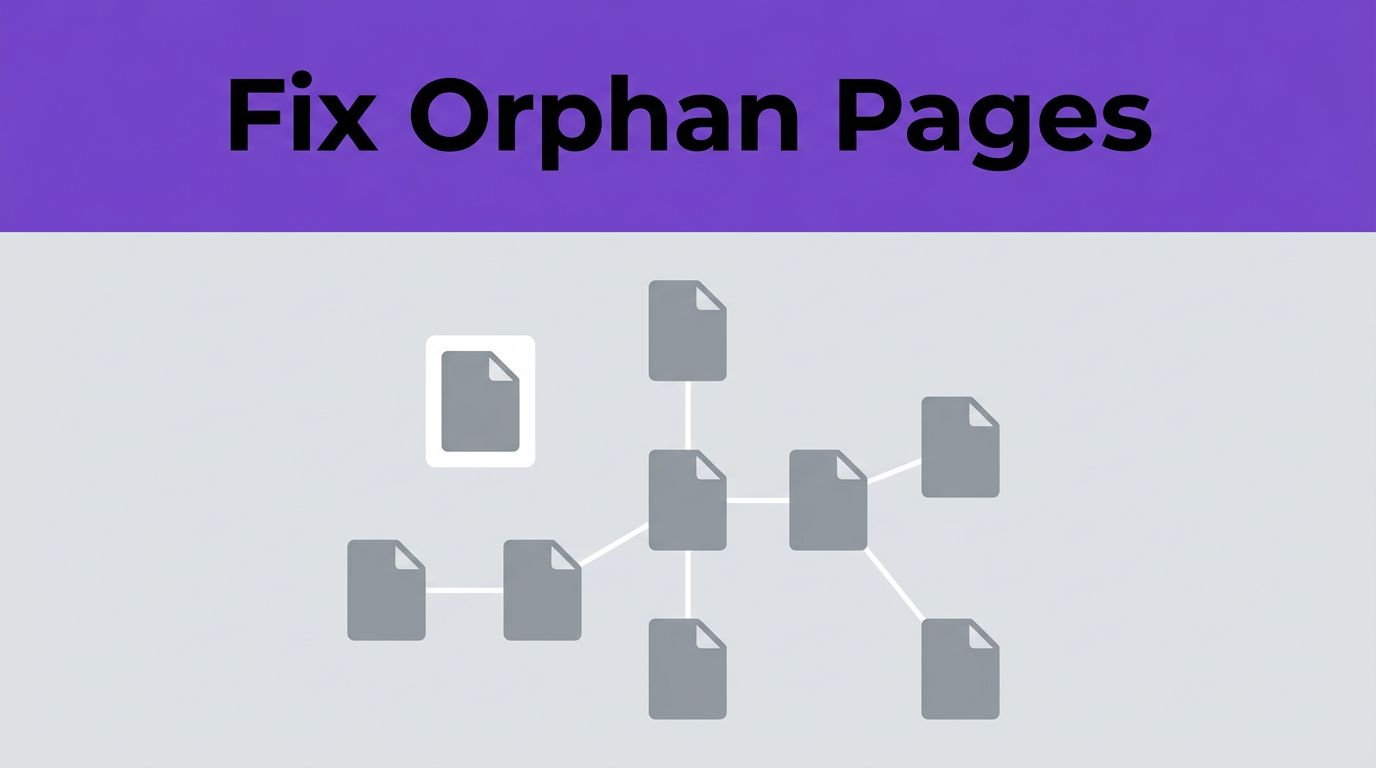

Some content on your site never gets a fair chance. These are orphan pages in WordPress, which exist and may even be indexed, yet remain isolated because no other part of your site links to them. This lack of connection makes it difficult for search engines to discover your content, ultimately preventing these pages from driving the organic traffic you deserve.
The fix is often simple. Build clear internal links to those pages, use relevant anchor text, and make them easy for both readers and crawlers to navigate. Start with discovery, then repair the linking structure around them to ensure your site architecture is optimized.
Key Takeaways
- Orphan pages are isolated: An orphan page is a live URL that has no internal links pointing to it, making it difficult for search engines to crawl and index effectively.
- Structure impacts visibility: Even if a page is in your sitemap, the lack of inbound internal links prevents the flow of authority (PageRank), often leading to poor SEO performance and wasted crawl budget.
- Detection requires comparison: Finding orphan pages typically involves comparing lists from Google Search Console, your XML sitemap, and a dedicated site crawler to identify URLs that exist but are unreachable through your internal link structure.
- Strategic linking is essential: Before linking, decide if the content is worth keeping; if so, add contextual links from high-authority, relevant pages using descriptive anchor text to guide both users and search bots.
Why orphan pages hurt WordPress sites
An orphan page is a live URL with no internal links pointing to it. On a WordPress site, this often happens after content imports, landing page tests, site redesigns, page builder drafts, or old posts that slip out of category and hub pages. Dealing with orphan pages in WordPress can negatively impact your overall SEO performance and waste your valuable crawl budget as search engines struggle to prioritize isolated content.
A page like this can still appear in search results. Google may find it through your XML sitemap, an external backlink, or a direct submission. Still, that page sits outside your site’s normal crawl path, so it gets weaker internal signals than pages connected through posts, archives, and topic hubs.
A page can sit in your sitemap and still be orphaned if no other page links to it.
That matters because internal links do two jobs at once. They help users move through related topics, and they help search engines understand which pages matter, how topics connect, and where authority flows. Without inbound internal links, your pages struggle to distribute PageRank effectively across the site, leading to less frequent crawling and a lack of context for your content.
For WordPress site owners, this problem is easy to miss. The page is published, the slug works, and the sitemap includes it, so everything looks fine on the surface. Yet traffic stalls because the page has no support from the rest of the site.
Not every orphan page deserves a rescue. If the page is outdated, thin, or creates duplicate content, you should prune it or merge it. For outdated URLs that are no longer relevant, you can implement a 301 redirect to consolidate your site structure. Fix the pages that deserve visibility, then connect them with links that make sense inside real content.
How to find orphan pages in WordPress
Google Search Console does not hand you a neat orphan-page report. You usually find these URLs by comparing more than one source, such as your XML sitemap, a site crawl, and your list of published pages.
This quick comparison shows the main options:
| Method | What you compare | Best use case |
|---|---|---|
| Search Console plus sitemap | Indexed or discovered URLs against your internal crawl | Small to mid-sized sites |
| SEO plugin reports | Published posts and internal link data inside WordPress | Fast checks from the dashboard |
| Crawlers and site audit tools | Crawled URLs against sitemap or analytics exports | Large sites or recent migrations |
The table points to a simple rule. Orphan pages show up when one source knows a URL exists, but your internal crawl cannot reach it.
Start with Google Search Console. Export the URLs you care about, then compare them with a crawl of your site. If the console sees a page, but your crawler never reaches it through links, you likely found an orphan. If the console is not connected yet, setting up Google Site Kit for WordPress makes it easier to pull core Google data into your dashboard.
Next, check your SEO plugin. Plugins like Rank Math and Yoast SEO can surface internal link data or orphan-post views right inside WordPress. These plugin reports are handy, but do not stop there. They are strongest when you compare them with crawl data and your site structure.
For larger sites, use a crawler or a dedicated site audit tool. Software like Screaming Frog, Sitebulb, Ahrefs Site Audit, and Semrush Site Audit can help surface URLs that live in your sitemap or Google Analytics exports but sit outside your internal link graph. That matters especially after a site migration, category cleanups, or bulk imports, when orphan pages tend to multiply.
Finally, scan your own content inventory. In WordPress, landing pages, older tutorials, attachment pages, and seasonal posts often fall out of the link structure first. Those are strong places to look before you add new content.
Add internal links that fit the page
Once you find an orphan, don’t rush to add random links. First, decide whether the page deserves to stay live. If it redirects, overlaps another page, or no longer matches your site, clean that up before you build links to it.
Start with the strongest source pages
The best fix is a contextual internal link from a closely related page that already has traffic, impressions, or backlinks. By building inbound internal links from high-performing content, you strengthen your topical authority and reinforce a pillar-cluster architecture that search crawlers love. On many WordPress sites, that means evergreen guides, resource hubs, and comparison articles.
Pick source pages that match the orphan page’s topic and search intent. If the orphan page is a tutorial on speeding up WooCommerce, link to it from an existing post about slow product pages or caching. A link from a random post about email marketing won’t help much, even if that post gets more traffic.
Authoritative pages matter because they pass more internal weight. A link from a strong, relevant article can do more than several weak links from thin pages. Beyond standard body links, implementing clean breadcrumb navigation can also provide the structural support necessary for users and bots to discover hidden content.
If your plugin settings need a cleanup first, this Rank Math Pro setup guide can help you tighten sitemaps and redirects. For those looking to automate the process, tools like Link Assistant can identify relevant link opportunities across your site, saving you from manual auditing.
Use anchor text that matches intent
Effective anchor text should sound natural in the sentence and describe the target page clearly to both readers and search engines. Generic anchors like click here or read more waste valuable context. Exact-match repetition across many pages is clumsy, so aim for phrasing that fits the paragraph and tells the reader exactly what they will get.
For example, if the orphan page teaches database cleanup, using clean your WordPress database as your link text is better than just saying this guide. It matches the surrounding topic and gives search crawlers a clear signal about the page content.
Place the link where readers expect it. Add it near the sentence that introduces the idea, problem, or next step covered on the orphan page. That makes the link useful for people first, which usually makes it better for SEO as well.
You can also add links in older articles during routine updates. This is one of the easiest wins on a content-heavy site. You already have the pages; you only need to reconnect them with the rest of the site. For another plugin-based example, the AIOSEO plugin outlines a helpful workflow in its orphan page tutorial.
Check the result and stop new orphan pages
After you add the links, crawl the site again. The once-orphaned URL should now appear in your crawl path. If it still does not, check for a noindex tag, canonical issues, pagination gaps, or links hidden behind scripts your crawler cannot follow.
Then inspect the page in Google Search Console. You may not see instant ranking changes, but you should see a cleaner discovery path over time. Watch impressions, clicks, and crawl activity across the next few weeks, especially if the page already had search demand.
Prevention is easier than cleanup. Add internal linking to your publishing workflow, especially for new landing pages and older content refreshes. Every time you publish, ask which existing pages should link to the new one, and which related pages it should link back to.
Quick checklist for your next audit
- Export important URLs from Google Search Console, your sitemap, or your SEO plugin.
- Perform a site audit to crawl the site and flag URLs that search engines cannot reach through internal links.
- Remove, merge, or redirect pages that should not stay live.
- Add contextual links from closely related pages with real traffic or authority to boost organic traffic.
- Use anchor text that fits the sentence and describes the destination clearly.
- Re-crawl the site and confirm the page now sits inside a clean crawl path.
Frequently Asked Questions
Can an orphan page still rank in search results?
Yes, an orphan page can appear in search results if Google discovers it via your XML sitemap, external backlinks, or direct submission. However, because it lacks internal link support, it will likely have significantly less authority and struggle to achieve high rankings compared to well-connected pages.
How often should I check my site for orphan pages?
It is a good practice to audit for orphan pages whenever you perform a site migration, bulk import, or major category cleanup. For active sites, incorporating a quick check into your quarterly SEO maintenance routine will help prevent isolated pages from accumulating over time.
Do I need to fix every orphan page I find?
No, you should first evaluate the quality and relevance of the page. If the page is thin, outdated, or duplicate content, it is often better to prune the URL, merge it with a stronger piece of content, or implement a 301 redirect rather than simply adding a link to it.
What are the best tools to identify orphan pages in WordPress?
For smaller sites, built-in reports from SEO plugins like Rank Math or Yoast SEO can be very helpful. For larger or more complex sites, dedicated crawling software such as Screaming Frog, Sitebulb, Ahrefs, or Semrush provides more robust data by comparing your site’s actual link structure against your sitemap and index.
Better internal links, fewer hidden pages
Orphan pages in WordPress are rarely a content problem on their own. More often, they are a structure problem, and structure is fixable. When you connect isolated pages to the right posts, hubs, and categories, you give both readers and search engines a clear route to follow. Dealing with orphan pages WordPress sites struggle with is an essential step toward improving your overall SEO performance.
The biggest win is simple: stop letting good pages stay hidden. By connecting these isolated URLs, you enhance the user experience and ensure your content remains discoverable. A few relevant additions can turn a forgotten URL into a page that finally has a chance to perform through better internal links.
This post may contain affiliate links. If you make a purchase through these links, I may earn a small commission at no extra cost to you.