


The Google Site Kit Plugin is the easiest way to connect your WordPress site to Google’s core services. I use it because it removes the technical friction of adding header codes, creating properties, and connecting multiple Google tools. This guide walks through each step so you can get Search Console, Analytics, AdSense, and Page Speed Insights connected in minutes.
Free Stuff! |
|
🎁Get Early Access to the Best AI Tools Before Everyone Else |
| Download Now! |
Table of Contents
- Step 1: Install the Google Site Kit Plugin
- Step 2: Activate and Start Setup
- Step 3: Sign in with Google
- Step 4: Disable Ad Blocker if Required and Connect AdSense
- Step 5: Connect Google Analytics
- Step 6: Connect Page Speed Insights and Search Console
- Step 7: Review the Site Kit Dashboard and Settings
- Common mistakes to avoid
- How long before I see data in Site Kit after connecting Analytics and Search Console?
- Can Site Kit place tracking codes automatically for me?
- Will using Site Kit affect site performance?
- Do I need multiple Google accounts to connect services?
- Final notes
Step 1: Install the Google Site Kit Plugin
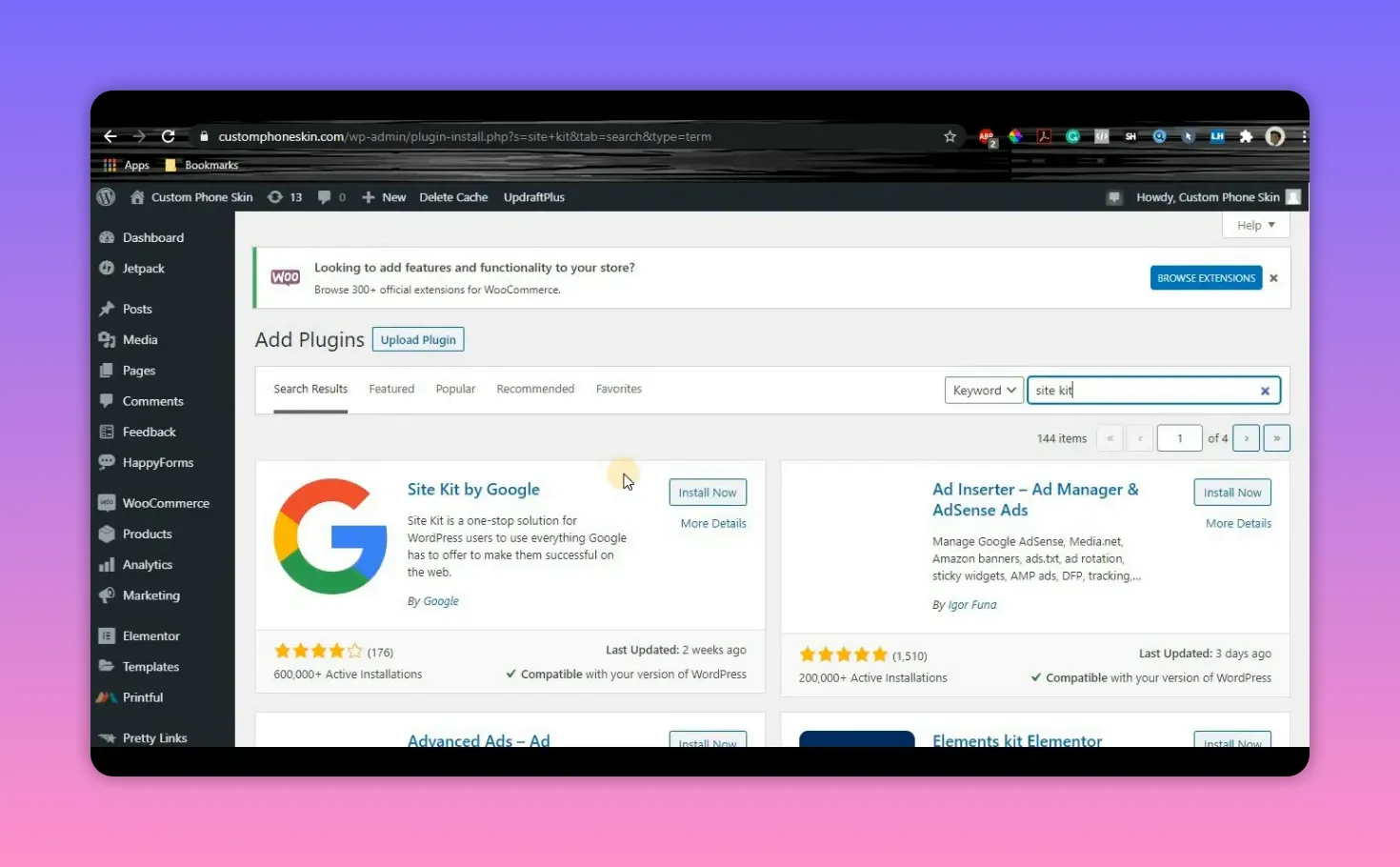
On your WordPress dashboard go to Plugins > Add New. Search for “Site Kit” and install Site Kit by Google. The plugin takes care of placing the required header code snippets, so you do not have to edit theme files or ask a developer to paste tracking scripts for you.
Step 2: Activate and Start Setup
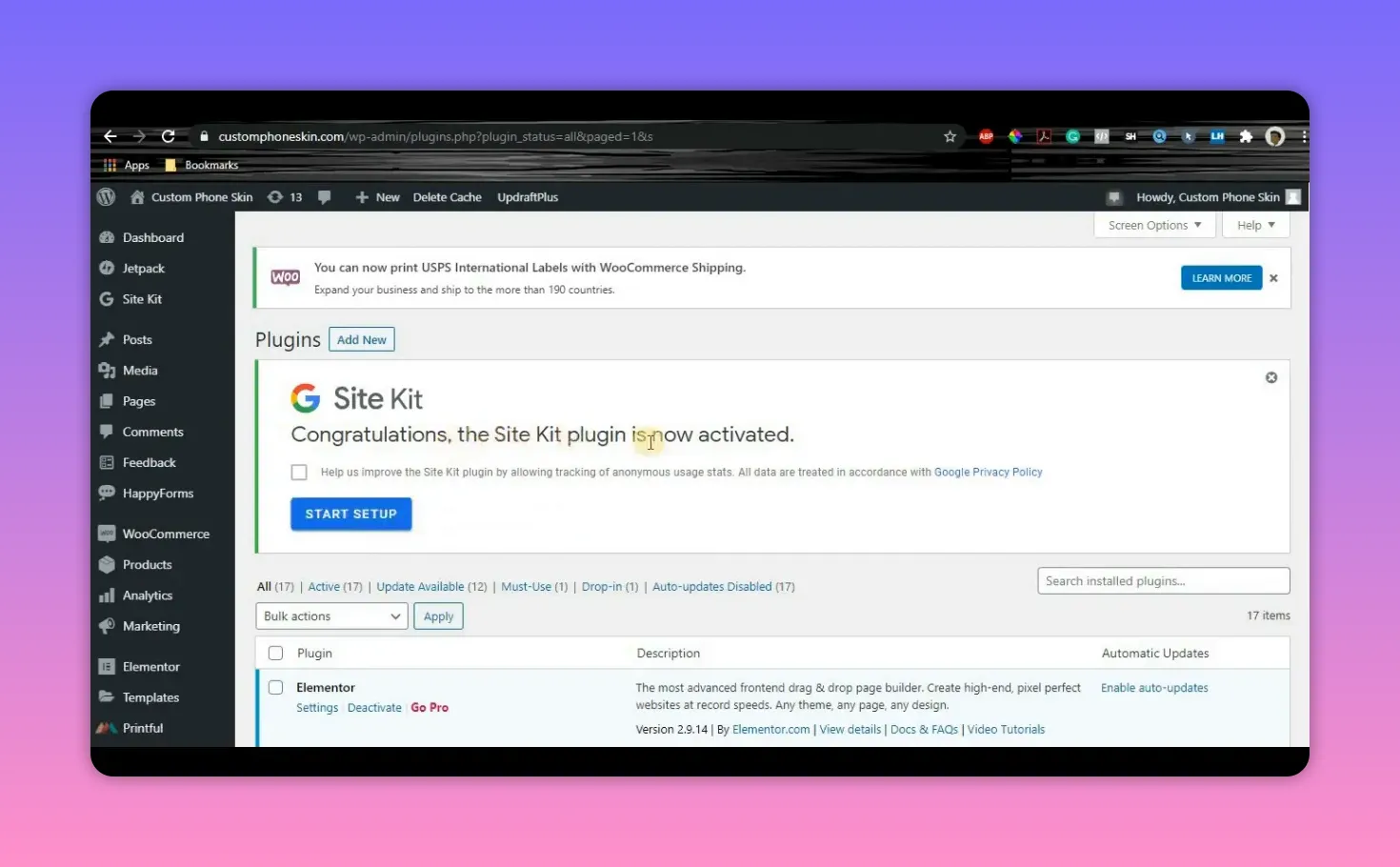
After installation click Activate. Once activated you’ll see a prompt that the plugin is ready. Click Start Setup. You can opt out of usage statistics if you prefer, but continuing lets the plugin proceed to connect to Google services.
Step 3: Sign in with Google
Click Sign in with Google and choose the Google account you want to use. You will be asked to grant permissions so Site Kit can access Search Console, Analytics, and other data. Allow the permissions so the plugin can create necessary properties and place codes for you.
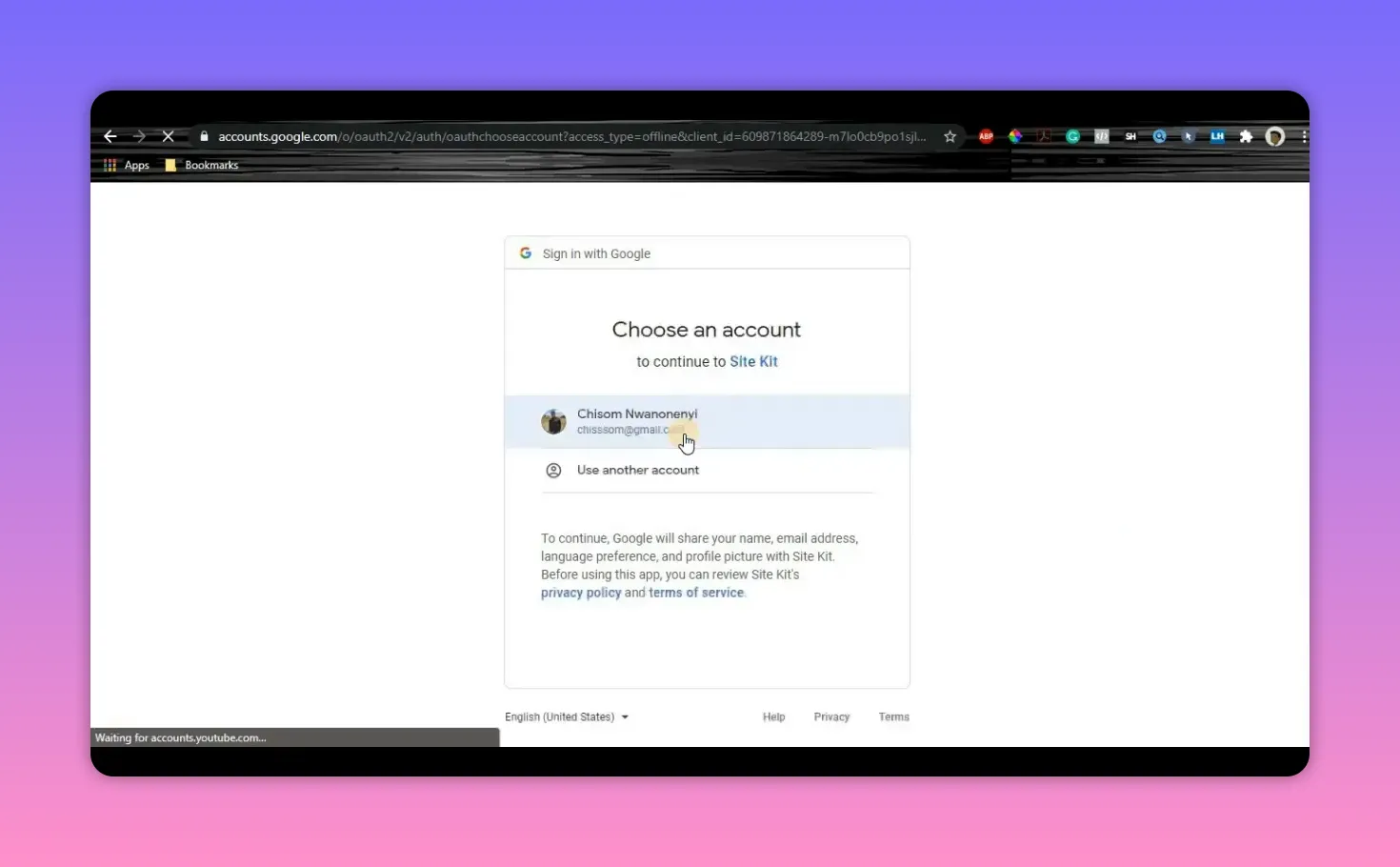
Step 4: Disable Ad Blocker if Required and Connect AdSense
If you’re using an ad blocker, Site Kit may detect it and prompt you to disable it before you connect AdSense. Temporarily disable the ad blocker and refresh the page so Site Kit can complete the AdSense verification.
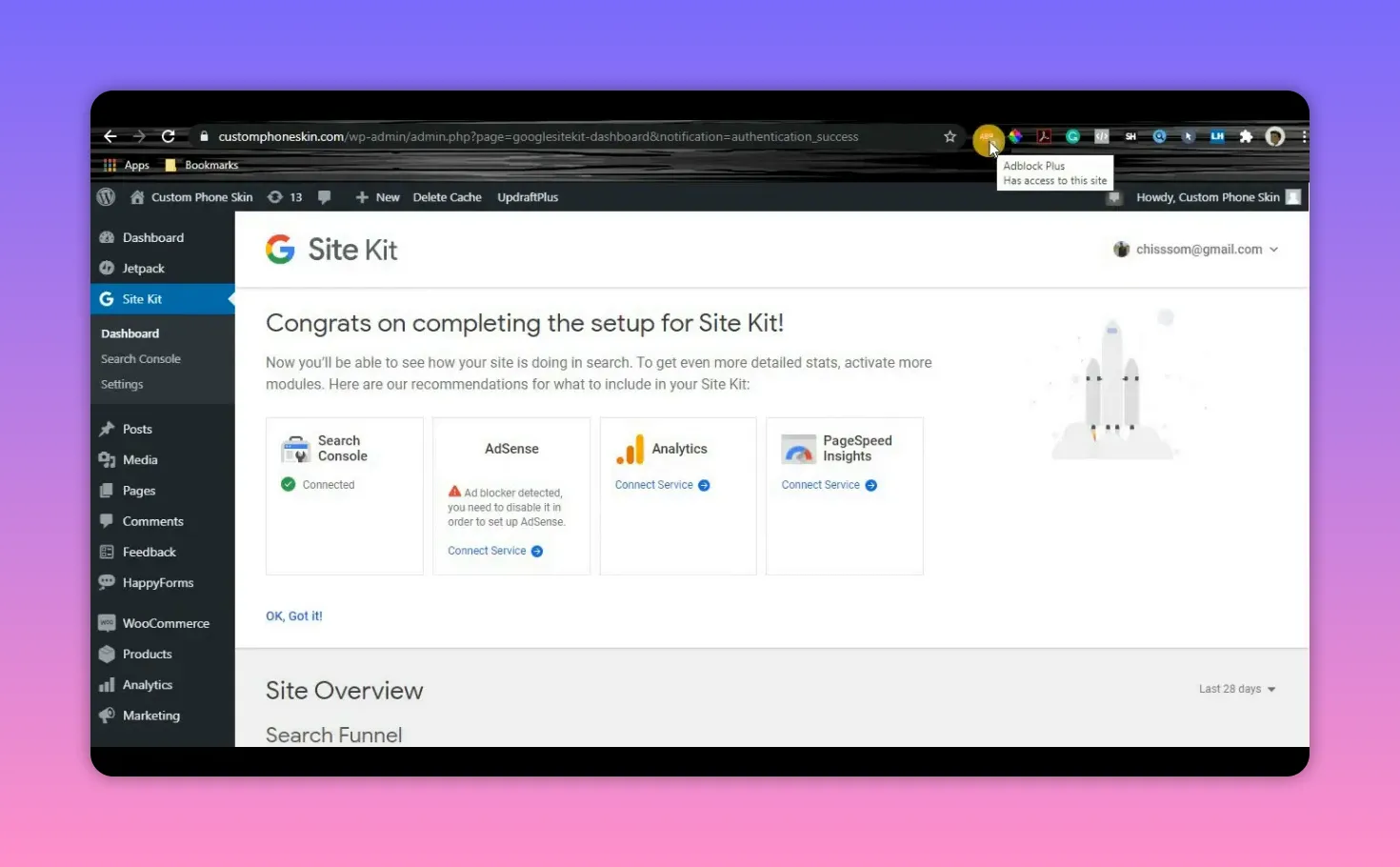
Click Connect Service beside AdSense. The plugin can place the AdSense code on your site to help get your site approved and prepare it to show ads. Follow the on-screen flow to add your site to AdSense and submit it for review.
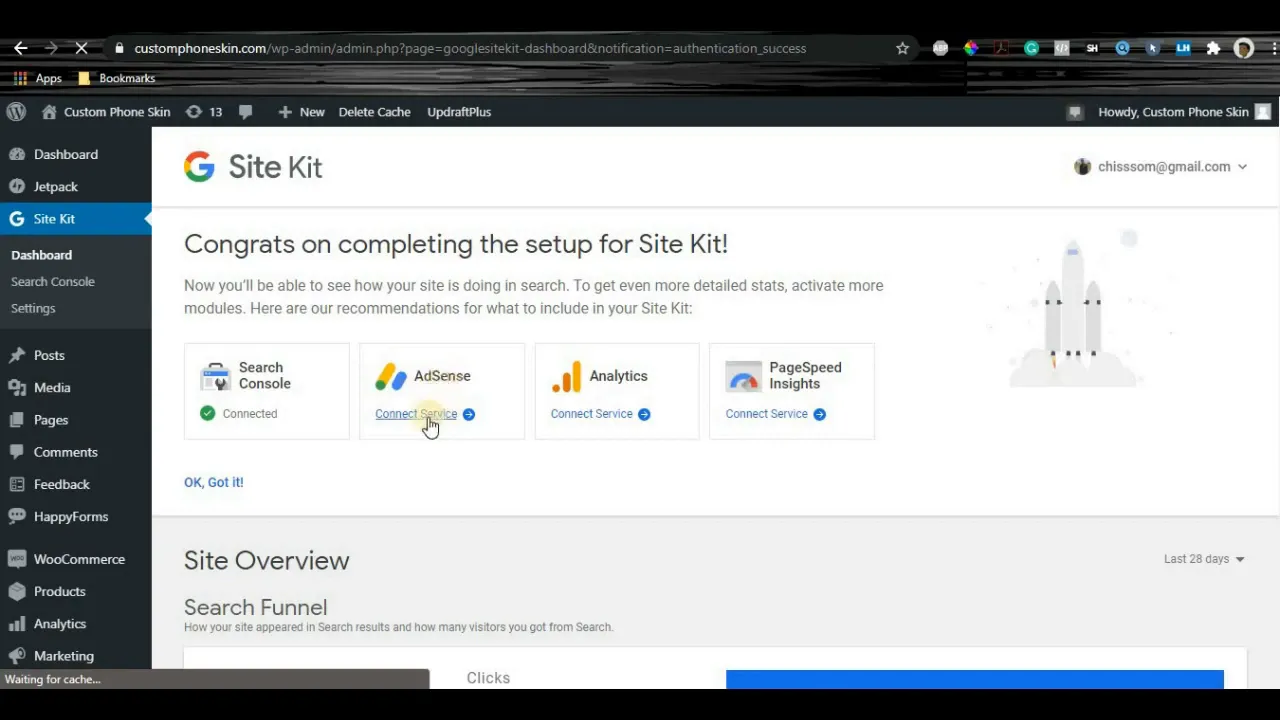
Step 5: Connect Google Analytics
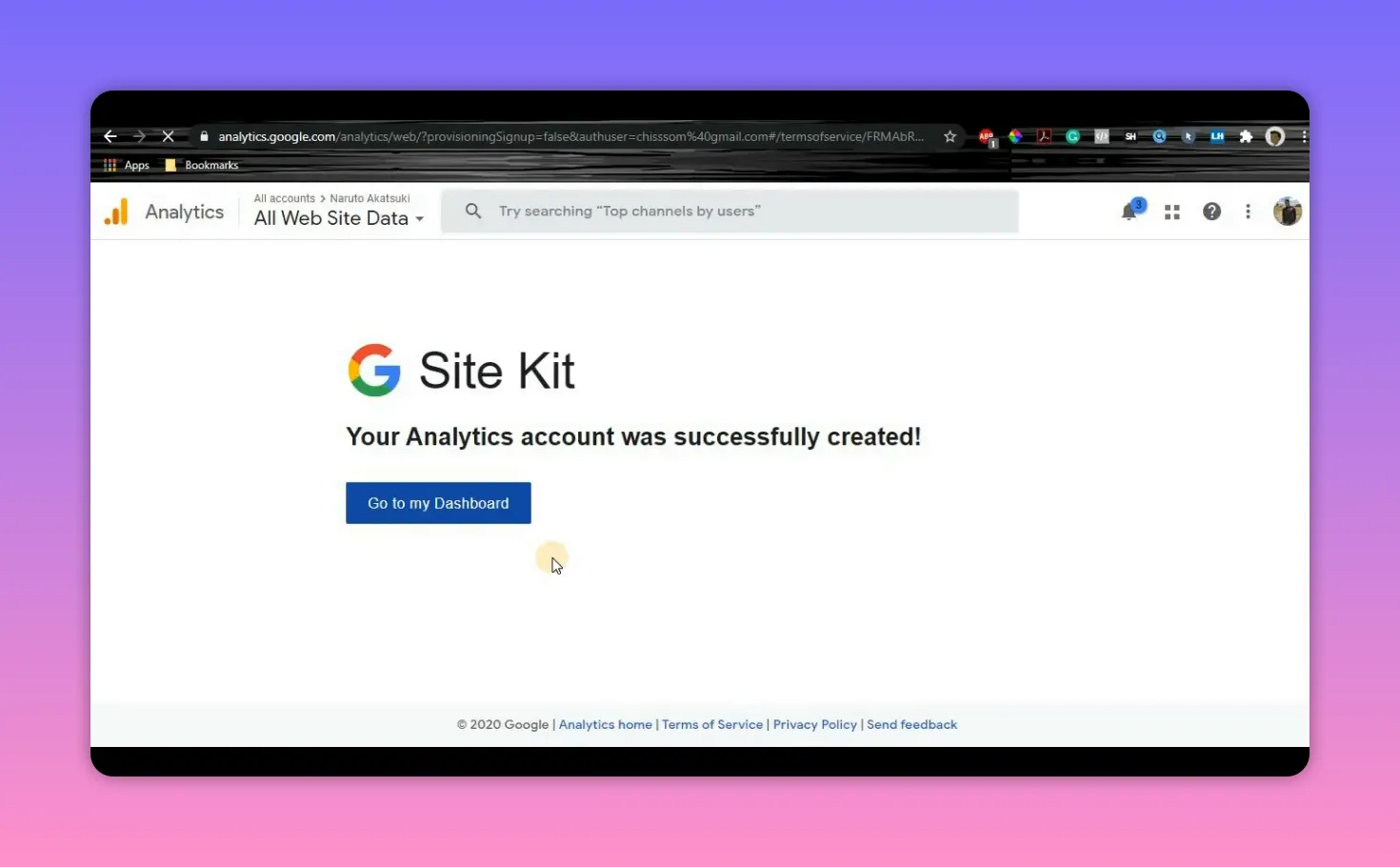
Site Kit simplifies Analytics setup by creating an account, property, and view for you if you don’t already have them. Click Setup Analytics, sign in again if prompted, and select Create account to let the plugin handle the rest.
- New to Analytics: Choose create account and allow Site Kit to generate the default property and view.
- Existing Analytics users: Select an existing account and property to link your site.
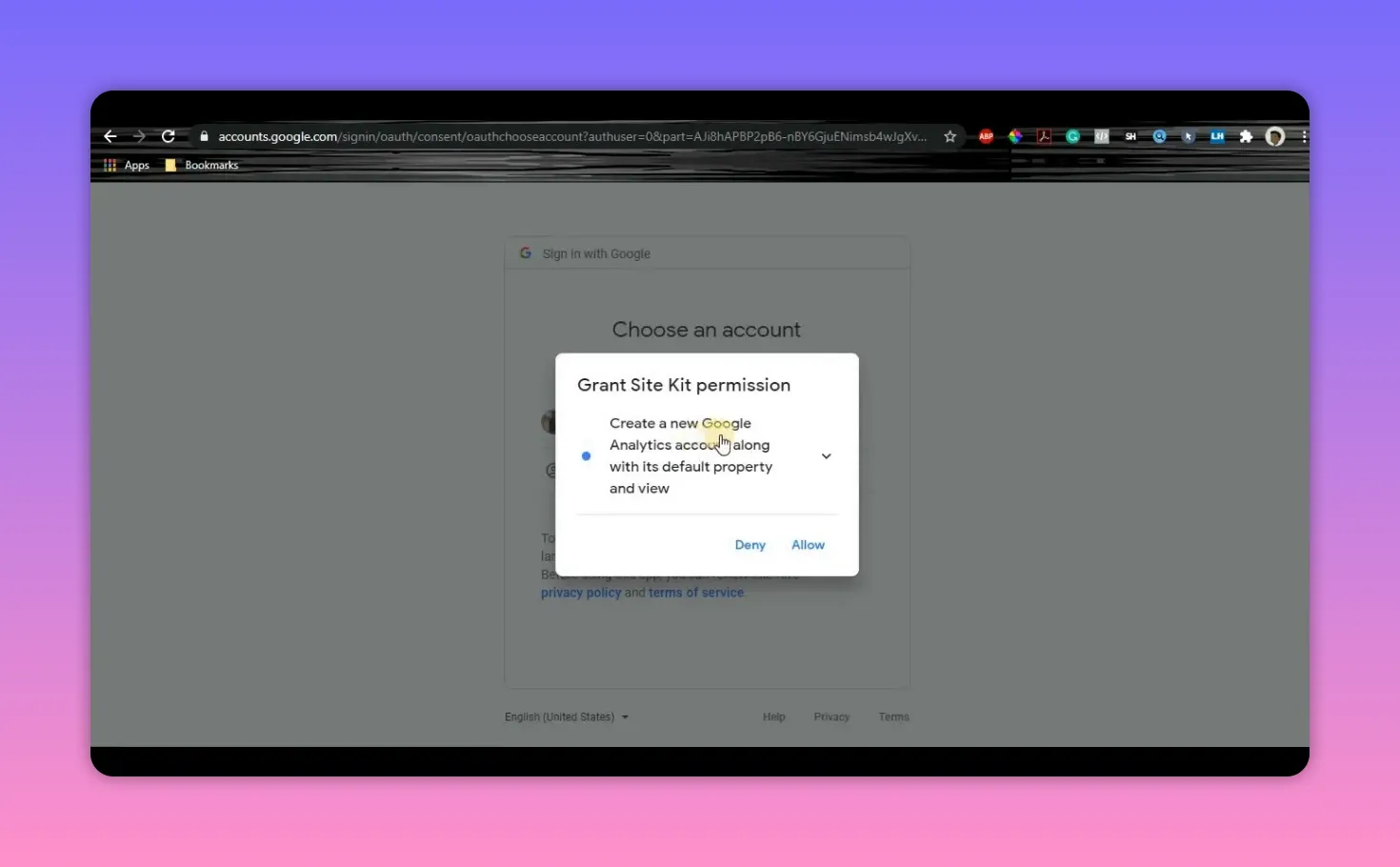
Grant the final permission screens and accept the terms. Once connected, Analytics data will appear in your WordPress dashboard within Site Kit panels.
Step 6: Connect Page Speed Insights and Search Console
Back in Site Kit settings, click Page Speed Insights > Connect service. Page Speed Insights will begin gathering performance data about your site. Do the same for Search Console to enable search performance reports and indexing information inside WordPress.
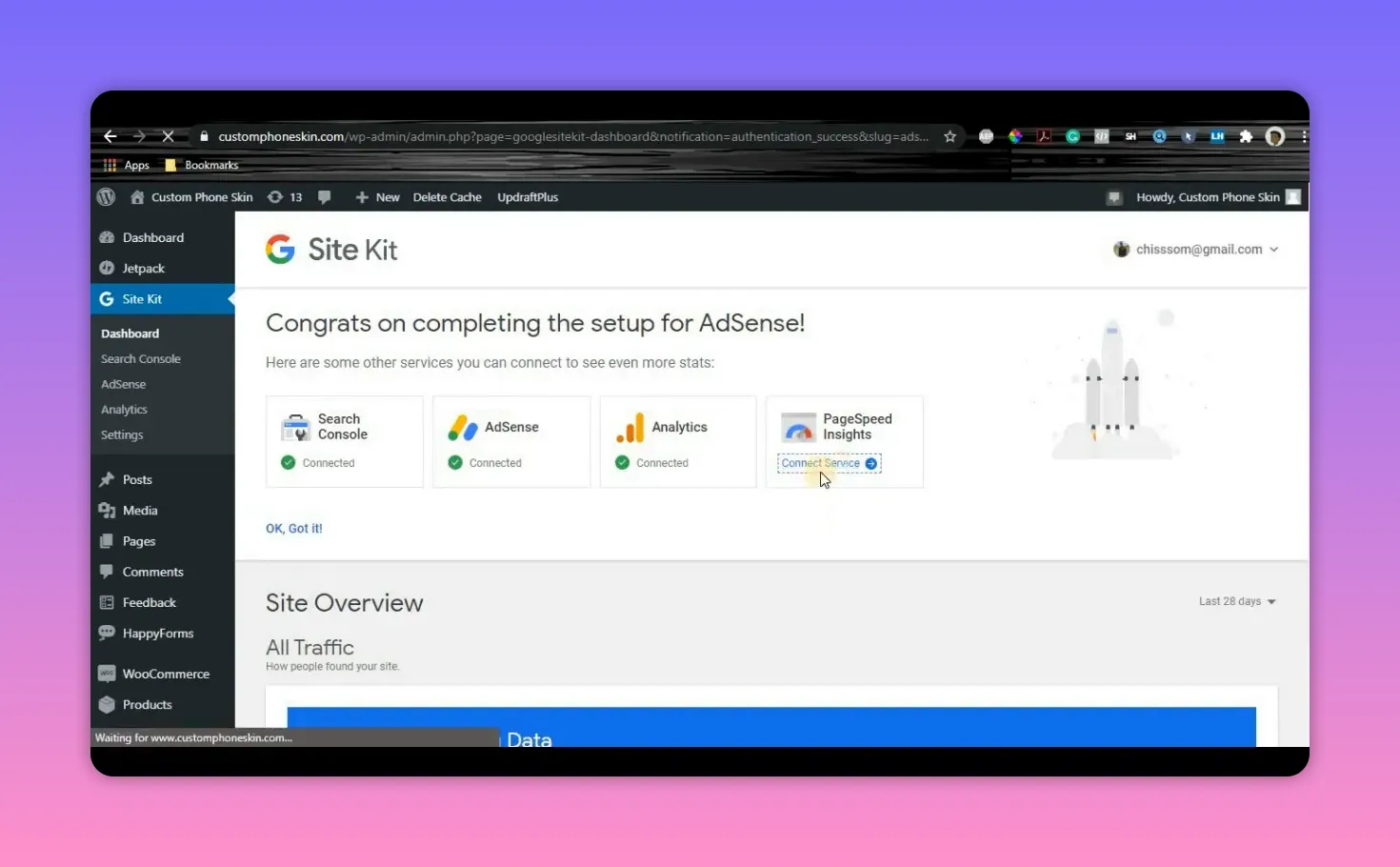
With Page Speed and Search Console connected you’ll start seeing impressions, clicks, and performance suggestions directly in the Site Kit dashboard.
Free Stuff! |
|
🎁Get Early Access to the Best AI Tools Before Everyone Else |
| Download Now! |
Step 7: Review the Site Kit Dashboard and Settings
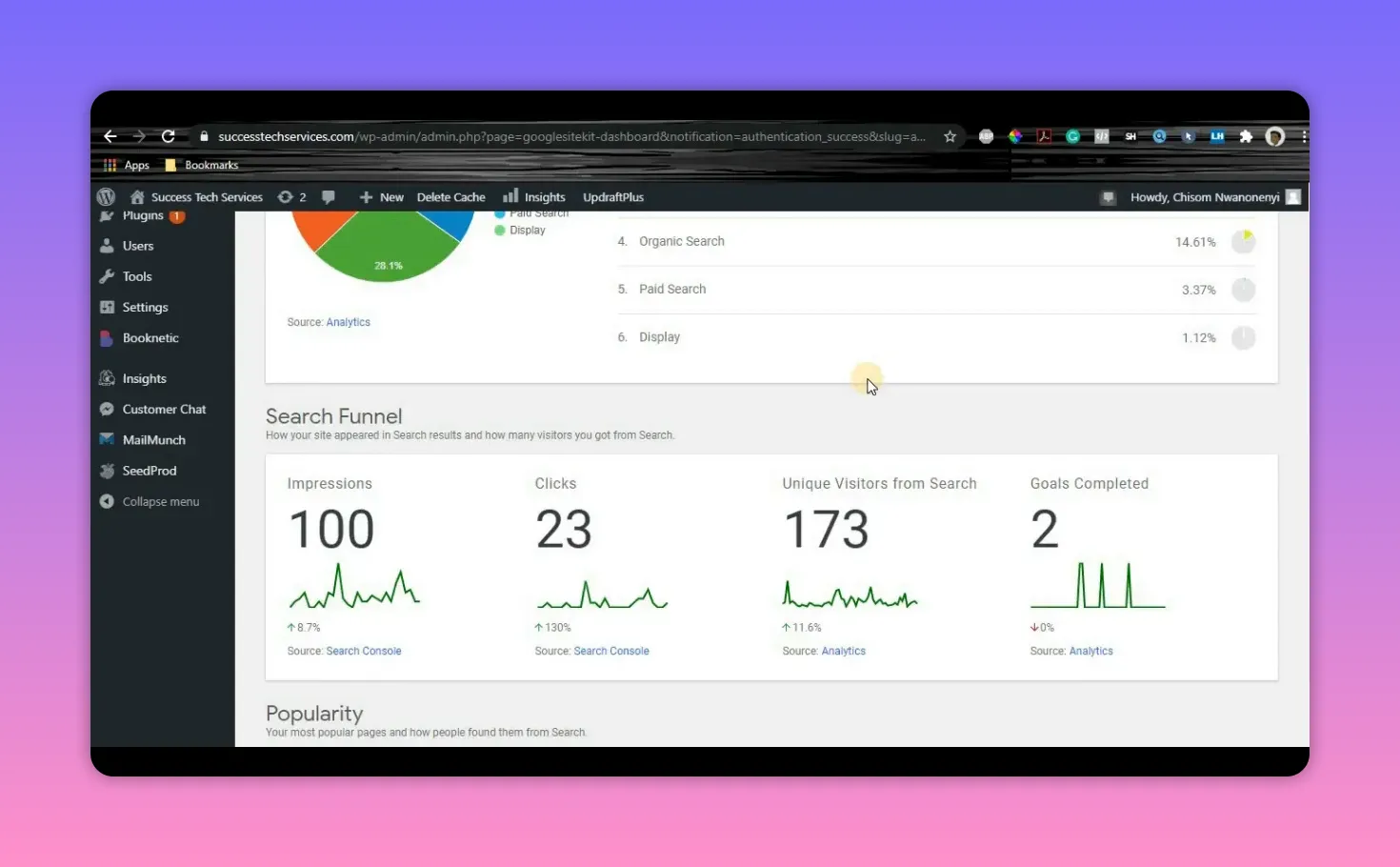
The Site Kit dashboard provides a quick overview: search funnel, analytics sessions, top pages, and performance scores. Use these reports to identify high-performing content and pages that might benefit from speed optimizations.
- Check Search Console for search queries and impressions.
- Use Analytics to monitor audience behavior and traffic sources.
- Consult Page Speed Insights for concrete performance recommendations.
If you need to adjust settings later, return to the Site Kit plugin page in WordPress and open Settings to manage each connected service.
Common mistakes to avoid
- Keeping an ad blocker enabled while trying to connect AdSense.
- Skipping permission prompts; those permissions let Site Kit create properties and place codes automatically.
- Assuming data appears instantly; some metrics take time to populate after initial connection.
How long before I see data in Site Kit after connecting Analytics and Search Console?
Can Site Kit place tracking codes automatically for me?
Will using Site Kit affect site performance?
Do I need multiple Google accounts to connect services?
Final notes
The Google Site Kit Plugin removes many barriers for site owners who want actionable SEO, analytics, and monetization insights without diving into code. I recommend setting it up as soon as you launch a WordPress site so you start collecting data from day one. If you run into any permission prompts or ad blocker messages, follow the on-screen instructions and revisit settings once each service shows as connected.
Once everything is connected, check your dashboard regularly and use the combined insights to improve content, speed, and monetization.
Free Stuff! |
|
🎁Get Early Access to the Best AI Tools Before Everyone Else |
| Download Now! |