
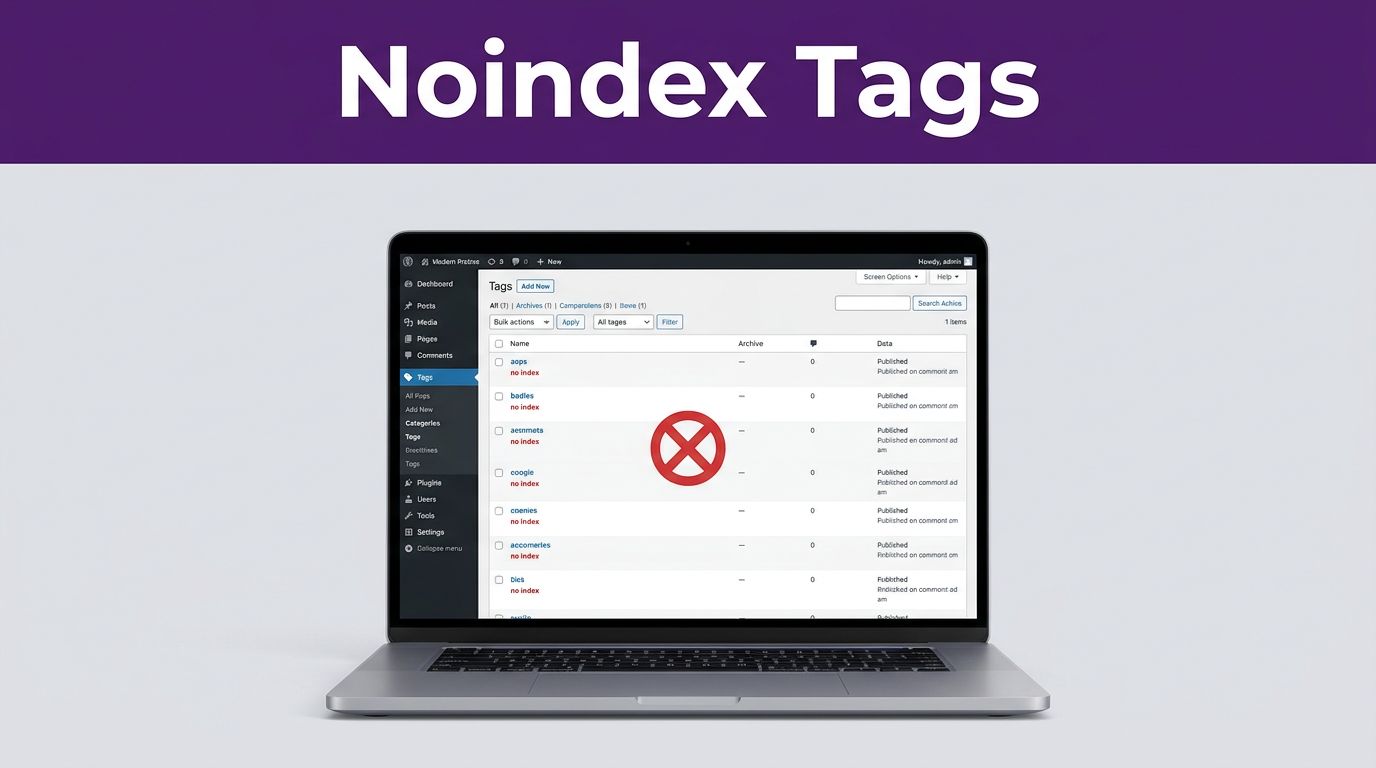

If you want to improve your site performance, learning how to noindex WordPress tag pages is an essential step for site maintenance. While these pages help readers browse, they often create thin archive URLs that provide little value to search engine results. When Google indexes too many of these weak archives, your site can look noisy instead of focused, which may negatively impact your overall quality signals.
The fix is straightforward. When you decide to hide pages from Google, you can set low-value content to noindex while keeping the URLs crawlable and leaving your most useful archives alone. Finding that balance allows you to protect your rankings while keeping your WordPress structure clean and ensuring that your site remains optimized for search visibility.
Key Takeaways
- Prioritize Indexing Quality: Only keep tag archives indexable if they contain multiple posts, offer unique value, and serve as organized topic hubs for your visitors.
- Avoid Robots.txt Blocks: Never block tag pages in your robots.txt file, as this prevents search engines from crawling the page to see your noindex instruction.
- Use Plugins Correctly: Utilize a single SEO plugin to set tag archives to “noindex, follow” while ensuring these URLs are also removed from your XML sitemap.
- Cleanup and Audit: Regularly audit your taxonomy structure to merge duplicates, delete empty tags, and ensure tag names do not overlap with your primary categories.
Decide which tag pages should stay indexable
Before you noindex WordPress tag pages, evaluate the actual role these taxonomy pages play on your site. Some tag archives are merely clutter, while others serve as highly useful topic hubs for your visitors.
A tag page should stay indexable if it groups many related posts, has a clear purpose, and helps users navigate your site. Ideally, these pages should contain more than a few posts, feature a unique introduction, and cover a specific theme that is not already addressed by your category pages.
For most sites in 2026, limiting your tagging strategy to two or three relevant tags per post is standard. When you assign five, eight, or ten tags to every article, you often end up with dozens of thin content pages by accident. These pages frequently feature only one post and lack the unique value required to rank in search results.
You should also avoid using the same phrase as both a category and a tag. This practice leads to duplicate content and sends mixed signals to search engines. If “AI Tools” is already established as a category, a tag with the same name rarely provides additional SEO value.
Tag archives make the most sense when they support a broader content structure. If you build your site around strong topical clusters, this guide on WordPress site architecture for topical authority shows how a well-managed archive structure can support your overall strategy.
A simple rule works well here: if a tag page provides value to readers and stands on its own, keep it indexable. If it exists only because WordPress generated it by default, you should noindex it.
Noindex, robots.txt, and canonicals do different jobs
Many SEO problems start when these tools get mixed up. While they may sound similar, they perform distinct tasks regarding indexing and crawling.
Google treats crawling and indexing as separate steps, and Google’s SEO Starter Guide is still a good reference for that distinction.
Here is the quick version:
| Setting | What it does | Best use for tag archives |
|---|---|---|
| Noindex | Allows crawling but asks search engines not to keep the page in the index | Low-value tag pages that still exist for users |
| robots.txt disallow | Blocks crawling of matching URLs | Rarely right for tag pages you want removed from search |
| Canonical tag | Points to the preferred version of near-duplicate content | Duplicate archive cases, not thin-content cleanup |
The main trap is easy to miss. If you block a tag page in your robots.txt file, search engine crawlers may stop visiting it entirely. If you prevent access at the robots.txt file level, Google may never see the meta robots tag on that page.
If search engines cannot crawl the page, they usually cannot confirm the “noindex” instruction.
Canonical tags serve a different purpose. A canonical tag simply says that another URL is the main version. It does not mean you are telling the engine to remove the page from the index. For tag pages that suffer from thin content, the noindex directive is usually the better tool because it allows the site to remain accessible while signaling that the page should not appear in search results.
This is also why sitewide crawl settings need care. Your robots file, sitemap, canonicals, and archive settings should all agree. If you want a wider audit, this Generative Engine Optimization checklist covers crawlability, sitemaps, and archive signals that affect WordPress sites in 2026.

How to set tag pages to noindex in WordPress
For most site owners, using a reliable SEO plugin is the fastest and safest way to manage indexing. While the terminology varies, the workflow is consistent whether you use the Yoast SEO plugin, Rank Math, All in One SEO, or similar tools.
Use an SEO plugin for the global setting
Follow these steps to update your site configuration:
- Review your current tag archives and identify which are thin, duplicate, or unused.
- Navigate to your plugin search appearance settings or taxonomy archive menus.
- Locate the configuration for taxonomy pages and switch them to noindex or show in search results: no.
- Leave the pages crawlable. Do not add a robots.txt disallow for the same URLs, as this prevents Google from seeing the noindex command.
- If your plugin allows you to remove these archives from your XML sitemap, ensure this is enabled.
- Clear any page, plugin, or CDN cache.
- Inspect the source code of a tag page to confirm it now outputs the correct robots meta directive.
In the Yoast SEO plugin, this setting usually lives under Search Appearance and Taxonomies. In Rank Math, you will find it under Titles and Meta for Tags. For the All in One SEO plugin, look under Search Appearance for Taxonomies. Regardless of the plugin, the goal is to implement a noindex follow rule across all tag-based archives.
If you use Rank Math and want the broader setup right, this Rank Math Pro setup tutorial helps with archive, sitemap, and indexing settings that affect taxonomy pages.
Most plugins also provide the ability to de-index individual pages if you have a specific tag that acts as a high-value landing page. You can usually find this in the advanced tab of the editor for that specific term. By adjusting the meta robots setting there, you can override the global rule to ensure that specific page remains indexed.
Use a template-level rule if you do not rely on a plugin
Some intermediate WordPress users prefer theme or custom code control to output the meta robots tag. In that case, manually inject a noindex follow meta robots tag on tag archive templates only.
Keep the scope tight. Target tag archives, not all taxonomy pages, unless that is your specific intent. Always test on a staging site first, because a broad archive rule can accidentally impact categories, product tags, or custom taxonomies. If you need to de-index individual pages manually, ensure you are editing the header template specifically for those items.
Your theme must load wp_head() correctly, or the meta robots setting defined in your code or via plugins may never print. That small template issue causes more confusion than most people expect when trying to verify if a page is properly excluded from search results.
The settings that prevent accidental SEO damage
Noindex is useful, but blanket rules can create their own mess. The safest approach is to separate low-value content from archives that carry real SEO value. Managing these archives carefully is essential to maintaining a strong quality score, as search engines evaluate how much thin or redundant information exists across your domain.
Do not noindex useful taxonomy archives by habit
Some sites use tag archives as curated topic pages. If a tag page has a strong intro, a clean list of related posts, and a topic users search for, keep it indexable.
That matters even more if the archive is part of your navigation. A page linked from your menu, footer, or hub pages should not be treated as disposable clutter without review. You should also clean up old terms. Merge duplicates, remove empty tags, and stop adding tags that mirror category names. Most tag bloat comes from years of casual publishing, not from one bad setting.
Be careful with paginated archives
Paginated tag archives deserve a quick check. If a tag archive is set to noindex, page 2 and beyond can also stay noindexed. That part is fine.
The risk is broader plugin logic. Some settings apply to all archive pagination, not only tags. If that rule inadvertently hits category pages, author archives, or custom post types, you can lose indexable archive content you actually wanted to keep.
Review categories, author archives, and custom post types one by one. WordPress often creates more archive types than site owners remember. A good audit question is simple: Is this archive helping readers and supporting a clear topic? If the answer is yes, treat it with care. If the answer is no, noindex is usually the right call.
Troubleshooting when Google still shows tag URLs
You changed the setting, but tag pages still appear in search results. That does not always mean the setup failed; often, you simply need to wait for the search engine to process your request to hide pages from Google.
Google still lists the URL
Google may need time to recrawl the page and process the meta robots tag. First, confirm the page is not blocked in your robots.txt file, as this prevents crawlers from ever seeing the noindex instruction. Then, inspect the URL in Search Console and request re-indexing after the new directive is live.
Also, remove noindexed tag archives from your XML sitemap if they still appear there. A sitemap full of noindexed URLs sends mixed signals to search engines and slows down the cleanup process. If a tag has no long-term value, consider deleting it and redirecting the old archive to the closest useful page. This is often cleaner than keeping hundreds of dead-end tags, or even internal search results, clogging your index.
Plugin settings fight each other
Conflicts occur when multiple SEO plugins are active, a theme adds its own global robots meta directives, or cache layers serve outdated HTML. Check the page source for duplicate meta tags or conflicting X-Robots-Tag headers to ensure your instructions are consistent.
Use one SEO plugin as the single source of truth for your site. Then, clear caches at every layer, including server and CDN caches, before you test again to ensure you can successfully de-index individual pages.
The theme creates archive surprises
Some themes and page builders create archive behavior you did not plan for. Post format archives, attachment pages, WooCommerce product tags, and custom taxonomies can inherit odd defaults that bypass your global settings.
If a tag page looks wrong, inspect the template to confirm what archive type you are viewing. A broader review of technical SEO basics can help when archive logic, crawl rules, and template overrides start overlapping and making it difficult to control which content appears in search.
Frequently Asked Questions
Why shouldn’t I just use robots.txt to hide tag pages?
Blocking pages in robots.txt prevents Google from accessing the page, meaning it can never see the “noindex” meta tag you placed on the site. Without seeing the meta tag, Google may still list the URL in search results, often without a description, because it cannot verify your instructions.
How do I know if a tag page should stay indexed?
If a tag page helps users navigate your site, contains a significant number of related posts, and is not a duplicate of an existing category, you should keep it indexable. If the page is essentially empty, contains only one post, or was automatically generated without a clear purpose, it is a candidate for a noindex directive.
Does setting a page to noindex remove it immediately?
No, changing the setting only adds the instruction to your page; Google must then recrawl your site to discover and process that new command. You can speed up the process by requesting a URL inspection and re-indexing in Google Search Console after you have confirmed the directive is live.
Keep Google focused on your strongest pages
When you noindex WordPress tag pages the right way, you optimize your site architecture by balancing indexing and crawling efficiency without cutting off necessary access. This is a critical move for site health.
Low-value tag archives should remain crawlable but be set to noindex follow. Meanwhile, tags that provide unique value should remain indexable. While robots.txt files and canonical tags have their place in technical SEO, they are not direct replacements for a clean noindex strategy.
A short audit now can save months of mixed signals later, ultimately improving your appearance in search engine results. By guiding search engine crawlers away from thin archive pages, you ensure they stay focused on the high-value content that generates real traffic, leads, and readers.
This post may contain affiliate links. If you make a purchase through these links, I may earn a small commission at no extra cost to you.