
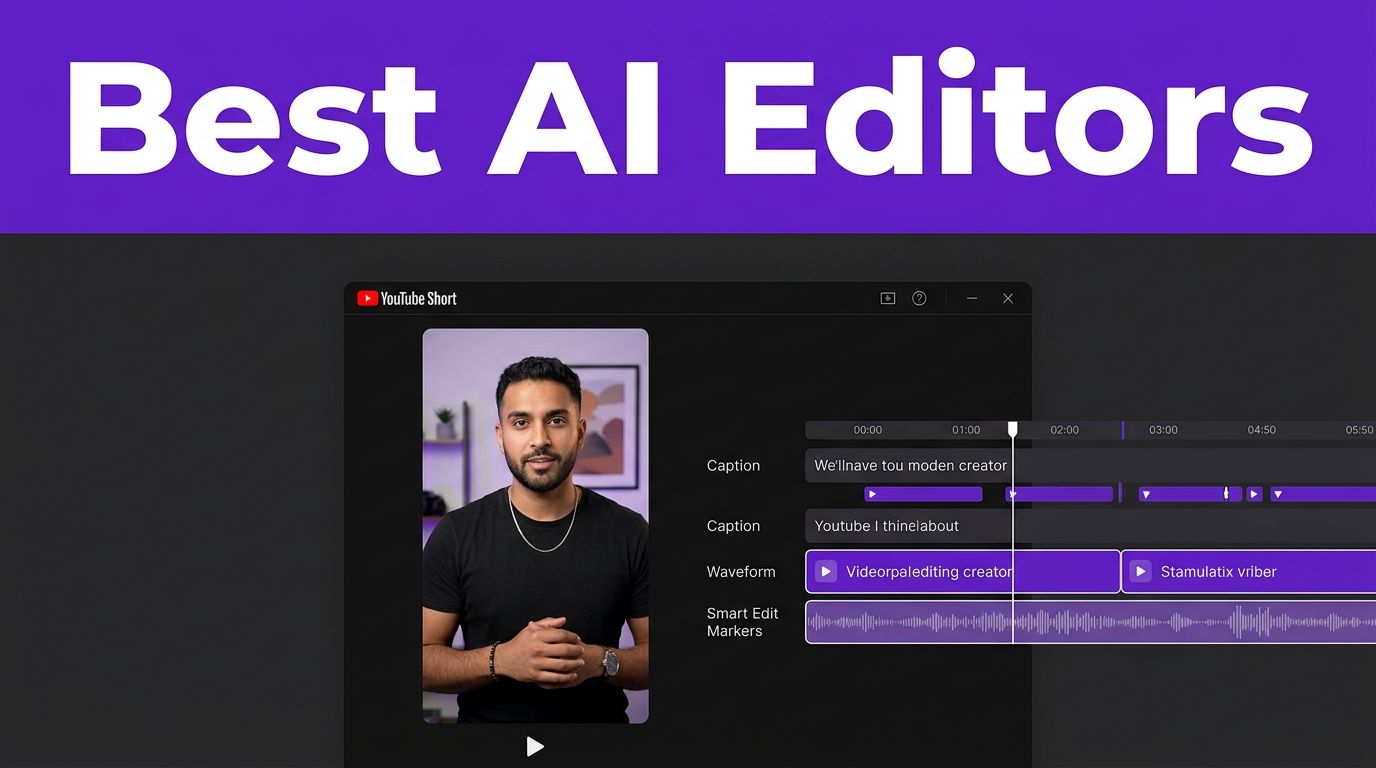


A Short can lose viewers before the second sentence ends. The right video editor helps content creators turn raw video clips into more watchable Shorts and streamline video production. The best AI video editors help you find stronger hooks, frame speakers vertically, add readable captions, and remove the dead space that makes people swipe away.
Your ideal tool depends on the footage you already have. Some creators need to turn podcasts into several clips. Others need fast, branded product videos or a faceless channel workflow. Choose for that job, not for the longest feature list.
AI-assisted editors and an AI video generator solve different problems
Video editing software covers two very different product types: some improve footage you own, while others create new footage. Knowing the difference helps you avoid expensive subscriptions that don’t match your workflow.
AI-assisted editors improve footage you already own
CapCut, Descript, VEED, Canva, and OpusClip work with existing clips. They can transcribe speech, trim pauses, generate captions, reframe a horizontal interview for 9:16, and suggest highlights.
These tools are a better choice when you record tutorials, podcasts, customer clips, product demonstrations, or talking-head videos. They speed up repetitive tasks, while timeline editing in the video editor keeps the final cut under your control.
Descript is especially useful for dialogue-heavy footage. Its transcript editor lets you delete a sentence in text, then removes that matching video and audio segment. This gives you more control than blindly accepting an automated highlight.
Generative AI tools create new footage
Adobe Firefly’s video tools use generative AI for video generation, creating short scenes from prompts or images. Other products can create digital avatars. Creators can use these tools for establishing shots, abstract visuals, product concepts, or animated B-roll they didn’t film.
That makes Firefly a useful companion, rather than a replacement, for a traditional editing workflow. For commercial projects, Adobe describes its Firefly models as safe for commercial business work. You still need to review the output before publishing and confirm your rights. Follow the platform’s rules, and avoid using protected characters or trademarks in prompts.
AI can identify a promising moment, but it can’t know whether that clip supports your channel’s message. Review every automated selection before posting.
Best tools for YouTube Shorts: quick picks
These choices help you choose a video editor for Shorts jobs and turn raw footage into social media content.
| Tool | Best fit | Why it works for Shorts | Free-plan reality |
|---|---|---|---|
| CapCut | Beginners and trend-led creators | Fast mobile and desktop cuts, templates, effects, text, and 9:16 projects | Basic exports can be free, but premium effects, some AI tools, and auto-captions may require Pro |
| OpusClip | Repurposing long videos | Finds clip candidates, reframes speakers, and creates captioned social cuts | The free plan refreshes 60 processing minutes monthly, according to OpusClip |
| Descript | Advanced spoken-word editing | Text-based editing, filler-word cleanup, captions, and precise transcript control | A free, watermark-free option exists, while AI and transcription allowances depend on plan |
| Canva | Branded marketing Shorts | Templates, brand kits, motion text, and simple social layouts | Free projects have no watermark with free assets, but free AI-generated video can carry a watermark |
| VEED | Caption-heavy marketing clips | Browser editing, subtitles, dubbing, stock assets, and quick review links | Free exports include a watermark |
| Adobe Firefly | Generated B-roll and concepts | Prompt-based video generation for scenes you cannot film | Generative work uses credits, so test prompts before producing several versions |
If your workflow is script-led and you don’t have on-camera footage, tools that support digital avatars may suit your needs.
For a simple start, choose CapCut or Canva. For a weekly podcast or interview series, OpusClip and Descript simplify repurposing content from long-form video. They reduce the hunt for usable moments. OpusClip’s current plan page lists its free tier and processing allowance, so check its pricing plans before committing to a high-volume workflow.
Match the editor to your YouTube Shorts workflow
A tool becomes valuable when it fits the footage, publishing schedule, and level of control you need.
Beginners and brand-led marketers should start with CapCut or Canva
CapCut is approachable video editing software for quick social edits. As a fast video editor, it lets you drop clips onto a vertical canvas, use auto-captions, cut on beats, and add animated text without learning a complex desktop editor. Its template-based videos can speed up routine posts, but watch template licensing closely, especially for sponsored content.
Canva suits marketers who need consistent social media content, colors, fonts, product screenshots, and clear calls to action. Its brand assets and video templates support repeatable marketing layouts, though it is less focused on finding viral clips and more useful for polished promotional Shorts.
Photo by Orlando Allo
For a prompt-to-video workflow with voiceovers and visual styles, follow this CapCut AI video maker tutorial. It offers a practical way to test simple faceless Shorts without committing to a complex workflow.
Faceless channels need a script-first workflow
Faceless channels usually need a script-first video production workflow. InVideo AI and Fliki can combine narration, stock media, a voice generator, and digital avatars into a script-generated rough cut. CapCut and Canva offer stronger control over the final visual rhythm.
Don’t publish a one-click draft unchanged. Replace generic stock media, correct names and numbers, and check whether the opening visual supports the script. Review digital avatars for natural expressions, accurate pronunciation, and appropriate pacing. A robotic voice paired with unrelated B-roll makes a channel feel disposable.
If voiceover-led production is your priority, this Fliki AI video generator review explains its text-to-video approach and free-plan limits.
Turn a long-form video into stronger Shorts
Repurposing content works best when the source contains clear opinions, useful steps, surprising results, or a sharp story. A full-length recording does not automatically contain ten publishable Shorts.
Use AI clipping to find candidates, then edit for context
Upload a long-form video to OpusClip. Let it identify promising video clips and assemble a rough cut, but treat that result as a candidate, not a finished Short. Review each recommendation with the sound on and captions visible.
Keep the selected video clips only if a new viewer can understand the point without watching the full episode. Add a title card or one brief context line when needed. Before publishing, review the rough cut again. For example, a clip that begins with “the third option is better” needs a new opening that names the option.
A strong Short often follows this order:
- Open with the outcome, disagreement, or problem in the first two seconds.
- Cut immediately to the proof, lesson, or demonstration.
- Add captions that highlight key words without covering faces or products.
- End after the useful point, then direct interested viewers to the full video when it fits.
Edit the transcript when pacing matters
Automated clipping can miss the exact sentence that gives a claim meaning. Descript is a video editor built for text-based editing. Editing the transcript supports precise timeline editing, while filler words removal can tighten repeated thoughts without deleting every natural pause.
Its transcript controls let you remove filler words, tighten repeated thoughts, and preserve pauses that help the point land. Its pricing page is worth checking before you build a team workflow around transcription, captions, or AI voices. Paid plans and allowances can change faster than the core editing experience.
Make captions, framing, and audio work together
A vertical crop is not enough. Social media content viewed on small screens needs clear sound and readable captions, or viewers may leave quickly.
Build every project in 9:16 from the beginning
Set your canvas to 1080 by 1920, a suitable video resolution, before adding titles or graphics. Choosing the right aspect ratios first keeps the speaker, product, and on-screen text visible on a phone.
When converting horizontal footage, don’t accept the first auto-reframe. A tool may center the frame between two speakers, crop a product, or lose a hand gesture that explains the action. Move the crop manually when the focal point changes.
For digital avatars, check that the face and captions stay inside the safe area whenever the crop changes. Generate automatic captions, then proofread names, numbers, and technical terms.
Use AI enhancements with restraint
Background removal can clean up a messy shot. Audio enhancement can make a phone recording easier to hear. Automated B-roll can prevent a long talking-head stretch from feeling static.
However, too many jump cuts, animated stickers, and unrelated generated visuals can make a useful video harder to follow. Use effects to support the message, then remove anything that competes with it.
Review the rough cut twice on a phone, once with sound on and once muted. This reveals unclear audio, unreadable captions, and framing problems before publishing.
VEED is a solid browser-based video editor for subtitle-first editing. Its free editor policy states that free exports include a watermark, while paid plans remove it.
Compare pricing, watermarks, and commercial-use limits
The monthly price is only one part of the cost of video editing software. Generative tools often sell credits, while clip tools may measure uploaded minutes. You can burn through either allowance when testing several versions.
Canva free users can export without a watermark when they use free assets. Yet its AI video apps can place watermarks on free-account output, and AI generation has separate credit limits. VEED applies a watermark to free exports. OpusClip currently promotes watermark-free exports on its free plan, but its processing minutes still create a ceiling.
CapCut’s price and available features can differ by platform and region. Its published U.S. comparison lists Pro at $19.99 monthly or $179.99 annually. Check its pricing plans and exact features before paying, since export limits, captions, premium templates, and commercial permissions may vary.
For generative AI, usage credits often matter more than the monthly price. Video generation can consume credits quickly, especially after failed prompts. Adobe Firefly can suit commercial projects, but review the latest Adobe AI user guidelines first. Check attribution, usage rights, and output restrictions before publishing material involving digital avatars or a voice generator.
Use licensed music, footage, stock media, voices, and templates. An editing subscription doesn’t grant rights to third-party material, including a movie clip, a creator’s video, or a popular song.
A 30-minute Shorts video production routine
Start with one long-form video or one approved script. Create three possible hooks before editing, because the opening determines whether viewers watch the rest.
Next, make a 9:16 rough cut that stays under the length needed to make its point. Add readable captions, check the crop, and remove pauses that don’t add tension or clarity.
Then watch it once with sound and once muted, even if it uses digital avatars. If it fails muted, strengthen the captions and visuals; if it feels confusing with sound, rewrite the opening line.
Before publishing, export a clean version and inspect the final video clips on your phone. You can also use Free AI Tools to generate hook variations, caption ideas, and short descriptions before you upload.
Frequently Asked Questions
What is the best AI video editor for YouTube Shorts?
The best tool depends on your footage and workflow. CapCut or Canva suit beginners and brand-led videos, while OpusClip is better for repurposing long-form content and Descript offers more control over spoken-word editing.
Can AI video editors turn a long video into several Shorts?
Yes, tools such as OpusClip can identify potential highlights, reframe speakers, and create captioned clips. Review every suggestion for context, then rewrite the opening or edit the transcript when the rough cut misses the point.
What aspect ratio should I use for YouTube Shorts?
Build Shorts in a 9:16 canvas, such as 1080 by 1920, so the video fits a phone screen. Check every auto-reframed clip manually to keep faces, products, gestures, and captions visible.
Are free AI video editors suitable for commercial Shorts?
Free plans can help you test a workflow, but they may include watermarks, limited processing minutes, AI credits, or restricted premium assets. Check the current plan details and confirm the commercial rights for music, footage, voices, templates, and generated content before publishing.
Choose the Tool That Fits Your Footage
The best AI video editors cut production time when they improve a workflow you already use. CapCut and Canva help beginners publish polished vertical videos. OpusClip saves time on long-form repurposing, while Descript gives spoken content the strongest editing control.
Treat AI as a fast first pass on a rough cut, not the final decision-maker. The same review applies to recorded footage and digital avatars: a clear hook, readable captions, accurate claims, and purposeful visuals still decide whether a Short earns attention.