


A long proposal can lose its shape after a few rounds of AI revisions. You ask ChatGPT to tighten one section, then spend time checking whether it changed the pricing explanation or softened a firm commitment. Targeted edits matter when every paragraph has a job.
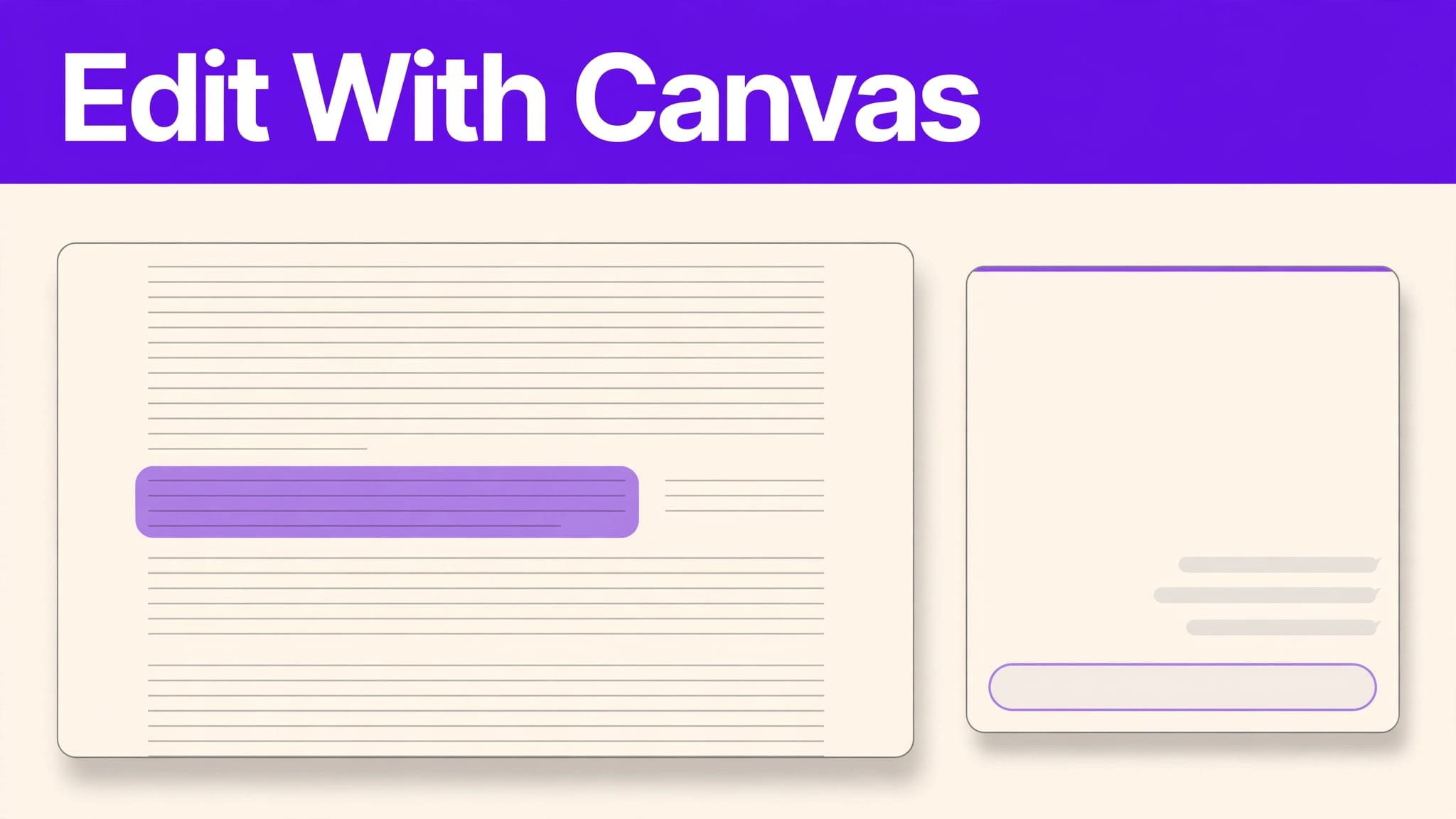
ChatGPT Canvas puts a document beside the conversation, letting you use conversational AI to edit selected passages during content creation instead of repeatedly requesting a new full draft. Its availability now depends on the model you’re using, though, so the first step is checking whether your account can open it.
Key Takeaways
- Canvas lets you select text, request targeted changes, and review a document in a dedicated editing area.
- Canvas availability can change with OpenAI’s product updates, so check its current guidance for your account and session.
- Its revision tools help you compare and restore drafts, but they don’t replace team version control or approvals.
- For client or executive work, check facts, tone, commitments, and sensitive information before sharing the result.
What ChatGPT Canvas changes in a long-document edit
The document stays in view
In a standard chat, each revision arrives as another message. Finding the current version of a lengthy report can mean scrolling past prompts, partial rewrites, and discarded drafts.
The working document sits in a real-time editor beside the conversation. This interactive editor lets you revise text directly while discussing changes, rather than treating every response as a replacement document. OpenAI’s introduction to Canvas describes it as an interface for writing and coding projects that need more than a simple exchange of messages. The original version was built with GPT-4o, though access depends on current product availability.
Selection gives an edit boundaries
Highlighting a passage tells ChatGPT where to focus. For example, a manager can select the risks paragraph in a board update and ask for plainer language while leaving the financial summary alone.
That boundary helps keep targeted edits focused. If you ask for a broad rewrite without selecting text, Canvas may change more of the document. A selected passage and a narrow instruction give you a clearer set of revisions to inspect.
How to open Canvas and check availability
On supported ChatGPT desktop experiences, you can ask ChatGPT to open a canvas for a writing task. Canvas may also open automatically when ChatGPT generates substantial content. If the option appears, start with a draft or ask ChatGPT to create one there.
Canvas availability can change as OpenAI updates its models and products, so older access guides may not reflect what’s available in your account. Check OpenAI’s ChatGPT release notes for the latest changes before relying on a specific model or cutoff date.
Availability may differ by platform, model, and workspace. Check the model selector and your workspace’s user interface rather than assuming a subscription guarantees Canvas access. If you can’t open it, you can still use ChatGPT for revisions in chat and move approved text into your document editor.
Prepare the document before requesting edits
Canvas works better when ChatGPT knows which parts of a business document are settled and which can change. Share the audience, purpose, preferred tone, and boundaries before asking for a rewrite.
For a client proposal, identify approved pricing, dates, scope, and legal language. Then ask for a defined task, such as shortening the executive summary or making the implementation plan easier to scan. Instructions like “preserve all numbers and commitments” are useful, but you must still check the output against the source.
A practical editing sequence is:
- Keep an untouched copy of the original in your team’s approved document system, following its version control process.
- Open the working draft in Canvas, if your current model supports it.
- State the document’s audience, owner, and sections that must remain unchanged.
- Revise one section at a time, then inspect the changes before moving on.
- Transfer the approved version back to the system where your team manages review.
For recurring content creation, ChatGPT Projects for editorial planning can help keep briefs and style guidance together. That organizational workflow is distinct from editing a passage in Canvas.
Make targeted edits without losing the message
Ask for a change you can verify
A request such as “improve the report” gives conversational AI wide discretion. A tighter instruction names the passage, the reader, and the acceptable change: “Rewrite this selected implementation section for a finance director. Cut repetition, but keep the milestones, dependencies, and dates unchanged.”
You can also ask for an inline critique before accepting a rewrite. For a dense recommendation section, request inline suggestions on unsupported claims or unclear ownership. Then decide which suggestions fit the evidence and the organization’s position. Canvas doesn’t know which internal decisions were approved in a meeting.
When numbers or commitments must stay fixed, select the surrounding prose and ask for a clarity edit, then compare every factual statement with the original.
Use shortcuts after the substantive review
Canvas includes writing shortcuts for suggesting edits, adjusting length, changing reading level, adding final polish, and adding emojis. Length control can help reduce a sprawling summary. A reading-level adjustment can make an internal process guide easier for a wider audience to use.
Neither option knows which detail your reader needs, and neither automatically preserves business-critical meaning. A shorter risk section might omit a material dependency. A simpler contract explanation might blur a defined term. Use final polish for wording and consistency after you’ve settled the argument. Emojis are rarely a good fit for a board paper or client agreement, even when the shortcut is available.
Where Canvas helps most in business writing
Proposals and executive updates
A proposal often contains sections written for different readers. The buyer may want a concise outcome statement, while the delivery team needs precise scope and responsibilities. Canvas lets you revise those passages separately and adjust the reading level for each audience.
For an executive update, select the opening summary and ask ChatGPT to lead with the decision required. Later, select the risks section and request clearer descriptions of owners and next steps. Keep the underlying figures and source notes outside the rewrite request so you can verify them afterward.
Reports built from meetings and research
Meeting notes can support content creation, but they aren’t approved decisions. OpenAI’s ChatGPT Record guidance says recorded summaries can be saved as canvases. If your organization permits recording, treat the summary as a draft. Confirm who agreed to each action, what remains open, and whether the recording can be used for that purpose.
Research-heavy reports need another check. ChatGPT’s deep research feature can produce a sourced report, but gathering sources and editing a document are different tasks. Before polishing a recommendation in Canvas, trace its claims to current evidence. Polished language doesn’t confirm that the supporting figures are accurate or up to date.
How revisions and restoration work
Canvas lets you move through earlier versions, restore one, and use Show changes to compare revisions. These controls help when an edit changes more than expected or earlier wording was stronger.
After shortening a service description, compare it with the earlier draft. Check whether the revision dropped an exclusion that protects the project scope. If it did, restore the earlier version or add the missing detail before continuing.
Canvas revision history isn’t a substitute for formal version control or a team’s approval trail. Keep dated, approved copies in your normal document system when multiple people need to sign off. Record who approved material changes to price, policy, or client commitments. Canvas helps you work through drafts, while your organization keeps the final record.
Canvas versus chat and other editors
Canvas is useful when you want to direct ChatGPT to part of a draft while keeping the surrounding document visible. Regular chat, like other conversational AI interfaces, is often enough for a short email, an outline, or a question about one paragraph. For longer documents, a sequence of full rewrites is harder to compare.
A conventional editor remains important when colleagues need comments, permissions, version control, and an established handoff process. Canvas shouldn’t be treated as a collaborative workspace for team review and approval. Teams already working in Google Docs can explore Google Docs AI writing tools without moving their review process into Canvas.
The same distinction applies to Claude’s Artifacts and Cursor, a coding environment for software development rather than business-document editing. Interface features alone don’t prove one tool edits long documents faster or more accurately. Test a representative document, measure how many changes survive human review, and choose the workflow that fits your team’s approvals. If you’re looking for a drafting option, this list of Free AI Tools offers other writing tools to consider.
Protect sensitive information and editorial judgment
Before placing a client document in ChatGPT, check your organization’s data policy, contractual obligations, workspace settings, and permission to use the material. Remove details the editing task doesn’t require. Redacted figures or anonymized examples may be enough to improve structure without exposing a full account history.
Human reviewers should check more than grammar. Confirm names, figures, citations, dates, and statements that could be read as promises. Also review the tone: an AI edit can make a cautious finding sound certain or turn a firm recommendation into vague advice.
For high-stakes documents, assign a named owner to the final pass. Canvas can help that person identify awkward passages and compare wording. It can’t approve a budget, judge a client’s private expectations, or take responsibility for a mistaken claim. Keep the approved final record in your organization’s normal system for version control.
Frequently Asked Questions
Can Canvas handle an entire long business document?
Canvas provides a dedicated place to work on longer writing projects, but OpenAI hasn’t confirmed a universal maximum document length. A reference to Canvas often opening for content over 10 lines describes automatic opening behavior, not a document-size guarantee. Use length control to shorten a selected passage, and work section by section on substantial reports. Check whether the full context remains available.
Does Canvas track changes like Microsoft Word?
You can view earlier versions, restore one, and use Show changes to inspect differences. That doesn’t make it a replacement for Word’s review process or your organization’s approval records. Save the final document where colleagues normally comment and sign off.
Is Canvas only for writing?
No. OpenAI also describes Canvas as a workspace for software development, including code editing and code debugging. Business users revising reports usually need its text selection and writing controls more than its coding features.
What if Canvas doesn’t appear in my account?
Check the selected model and platform first. In particular, OpenAI removed Canvas from GPT-5.5 Instant and GPT-5.5 Thinking in May 2026. Availability can change as legacy models retire, so consult your current workspace options rather than relying on an older plan comparison.
Conclusion
The hard part of editing a long proposal isn’t producing more text. It’s changing the right passage while protecting everything the document must still say.
ChatGPT Canvas helps by keeping the draft visible and giving you targeted revision tools. Use those tools alongside source checks, careful comparison, and a human approval process. That combination makes a revised document easier to trust.