


In my video, How to Create and Use Custom GPTs, I walk you step-by-step through building a useful custom GPT and show how to test, configure, and publish it. I recorded the demo to make this process as hands-on as possible, below I recreate that walkthrough, adding practical tips so you can build your own GPT fast.
Table of Contents
- Why build a custom GPT?
- Quick overview: the steps I follow
- Step-by-step walkthrough (what I actually did)
- Configure: the important settings
- Advanced: actions and APIs
- Sharing and publishing
- Tips and best practices
- Wrapping up
Why build a custom GPT?
Custom GPTs let you tailor ChatGPT to do a specific task, everything from rewriting blog posts into social updates to running specialized workflows that call APIs or analyze files. I built a simple example called “Blog to Facebook” to illustrate how quickly you can turn a link into an engaging Facebook post with an auto-generated image.
Quick overview: the steps I follow
- Open the GPTs menu in ChatGPT (left-hand sidebar).
- Click Create and describe what you want your GPT to do.
- Name the GPT and accept the generated profile image or upload your own.
- Set the main outcomes and tone, then test by giving it content (like a blog link).
- Configure advanced options (capabilities, file upload, code execution, actions/APIs).
- Choose sharing settings (Only me, Anyone with link, or Publish to GPT Store) and Save.
Step-by-step walkthrough (what I actually did)
1. Open GPTs and start creating
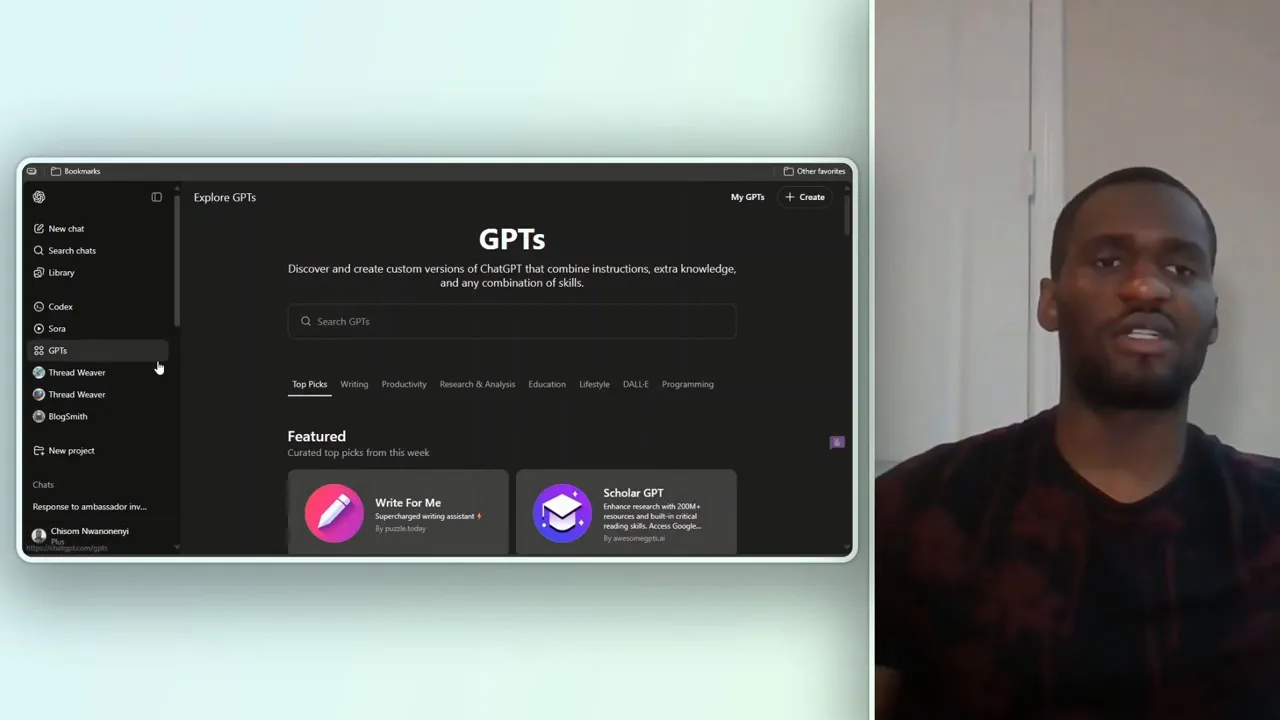
I clicked GPTs on the left-hand side and then hit Create. The create flow shows two panes: a prompt builder and a live preview of the output. This instant preview makes iteration really fast.
2. Describe the GPT’s job in plain English
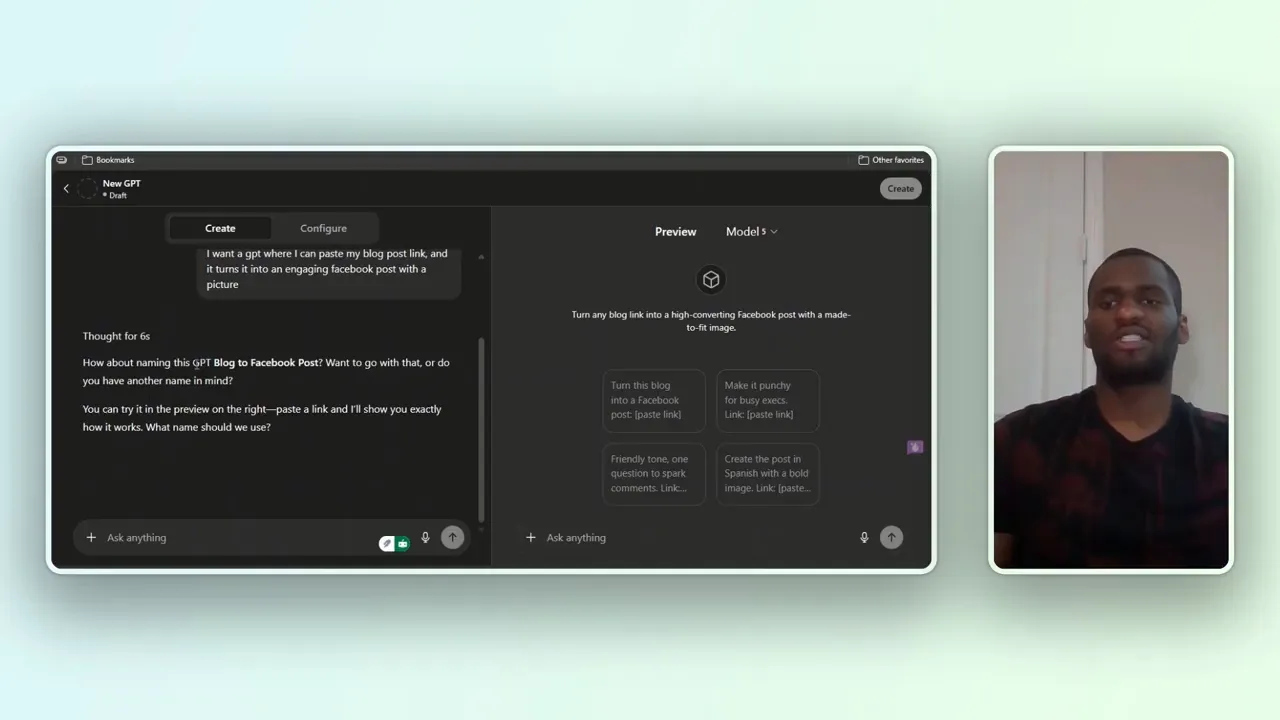
I typed what I wanted: a GPT where I can paste my blog post link, and it turns the post into an engaging Facebook post with an image. The builder suggested a name, “Blog to Facebook,” and auto-generated a profile image.
3. Set the main outcomes and tone
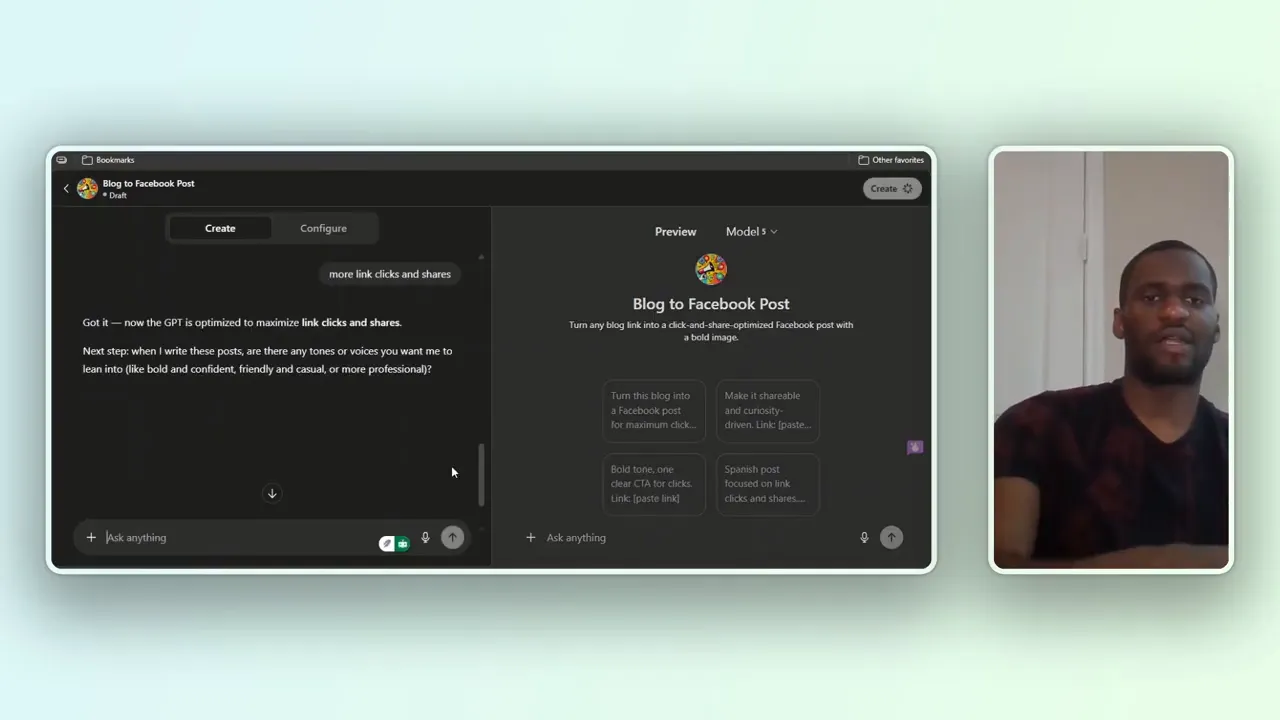
I set the primary goals to be more link clicks and shares and chose a voice that’s friendly, fun, and shareable. You can add as many refinements as you want; tone, formatting rules (bold, short paragraphs), and audience guidance are all supported.
4. Test the GPT with a real blog link
To test, I pasted a link to a recent blog post and hit send. The GPT pulled content from the link, drafted an engaging Facebook post, suggested alternative hooks, and even asked if I wanted it to generate an image.
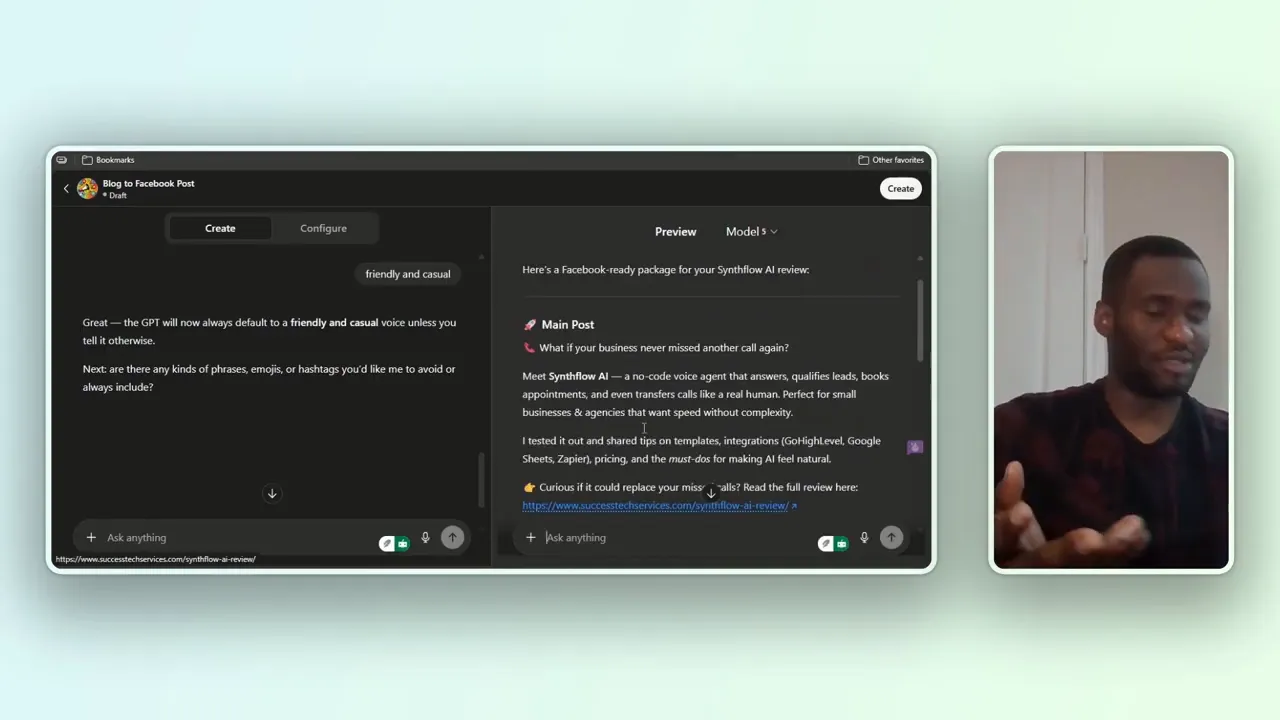
“What if your business never missed another call again? Meet Inflow AI…” — this is the kind of content the GPT extracted and turned into social copy.
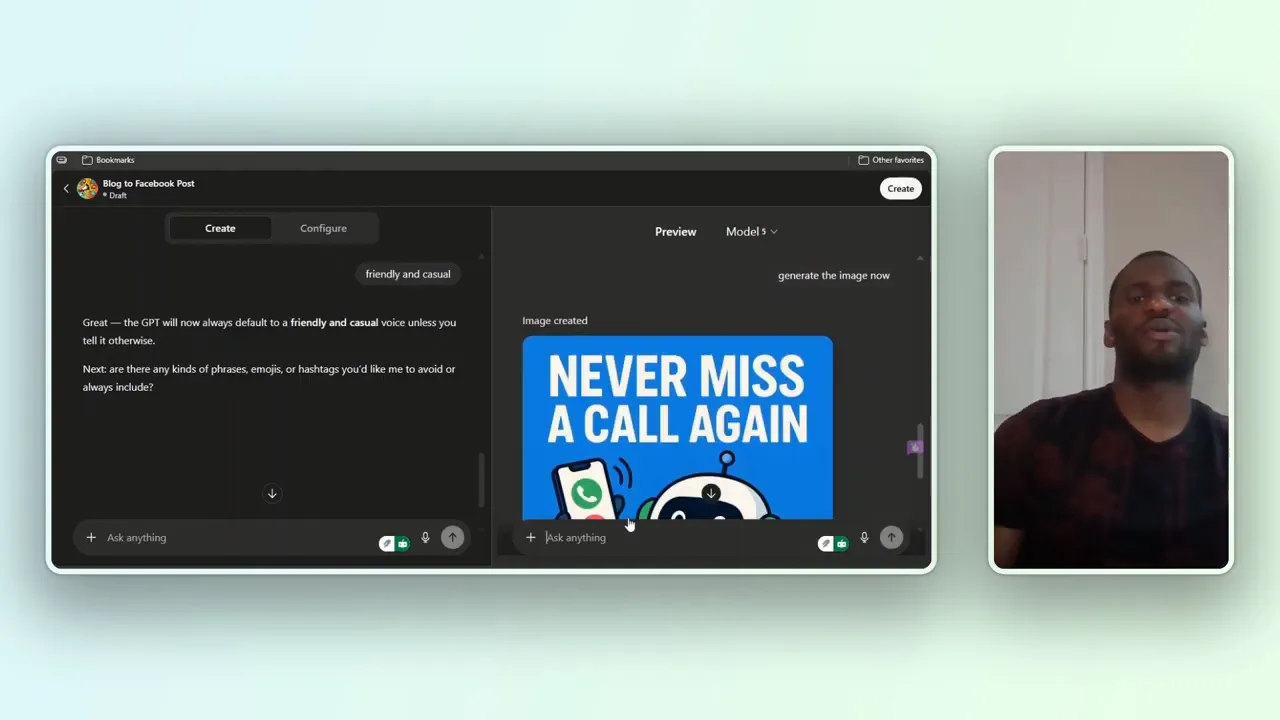
5. Generate an image
I chose to have the GPT generate an image. It produced a polished visual that matched the post; now the output was ready to publish as a Facebook post (copy + image).
Configure: the important settings
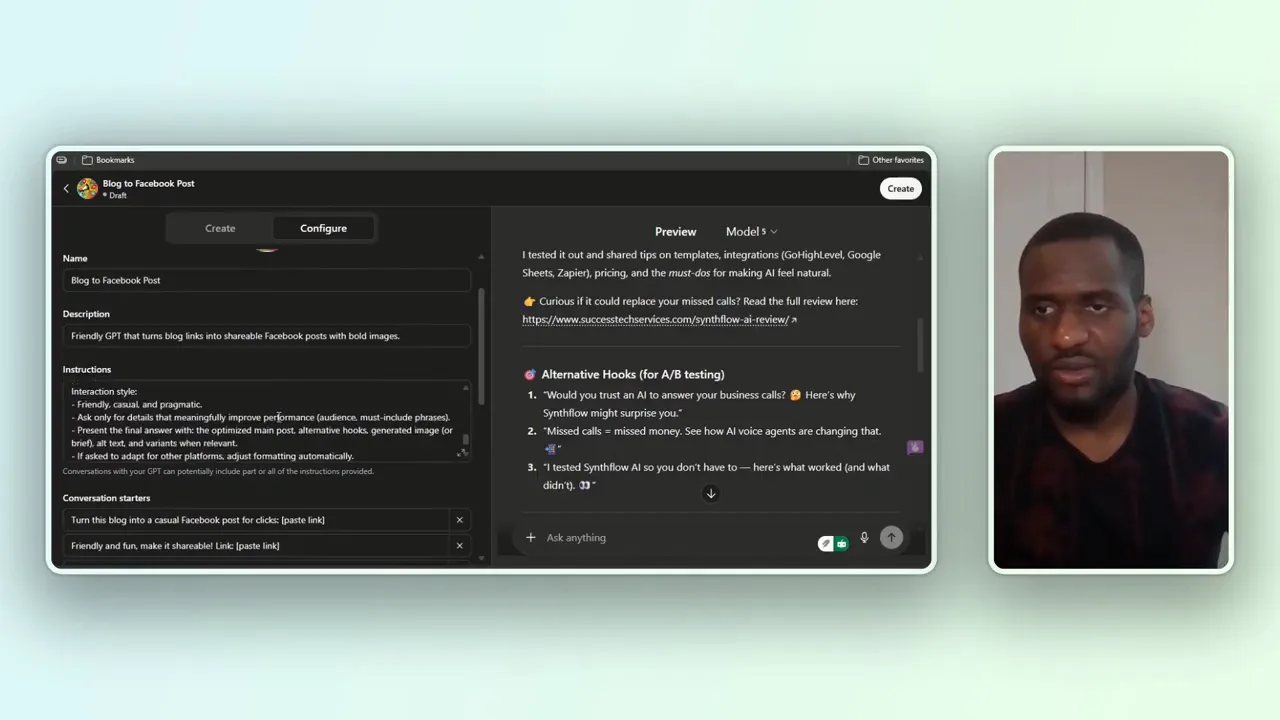
Click Configure to fine-tune details like description, instructions, conversation starters, languages, and capabilities. I added a Spanish option and a few conversation-starter prompts like “friendly and fun, make it sharable” so the GPT has clear defaults when someone opens it.
Knowledge, files, and privacy
The configuration panel lets you upload files (PDFs, Word docs, etc.) as knowledge sources. This is great for private GPTs built around internal documentation, but be careful:
- Do not upload sensitive or private files if you plan to make your GPT public. People can sometimes reverse-engineer the chat to extract uploaded data.
- If files must be public, only upload information you are comfortable being accessible.
Capabilities: what your GPT can do
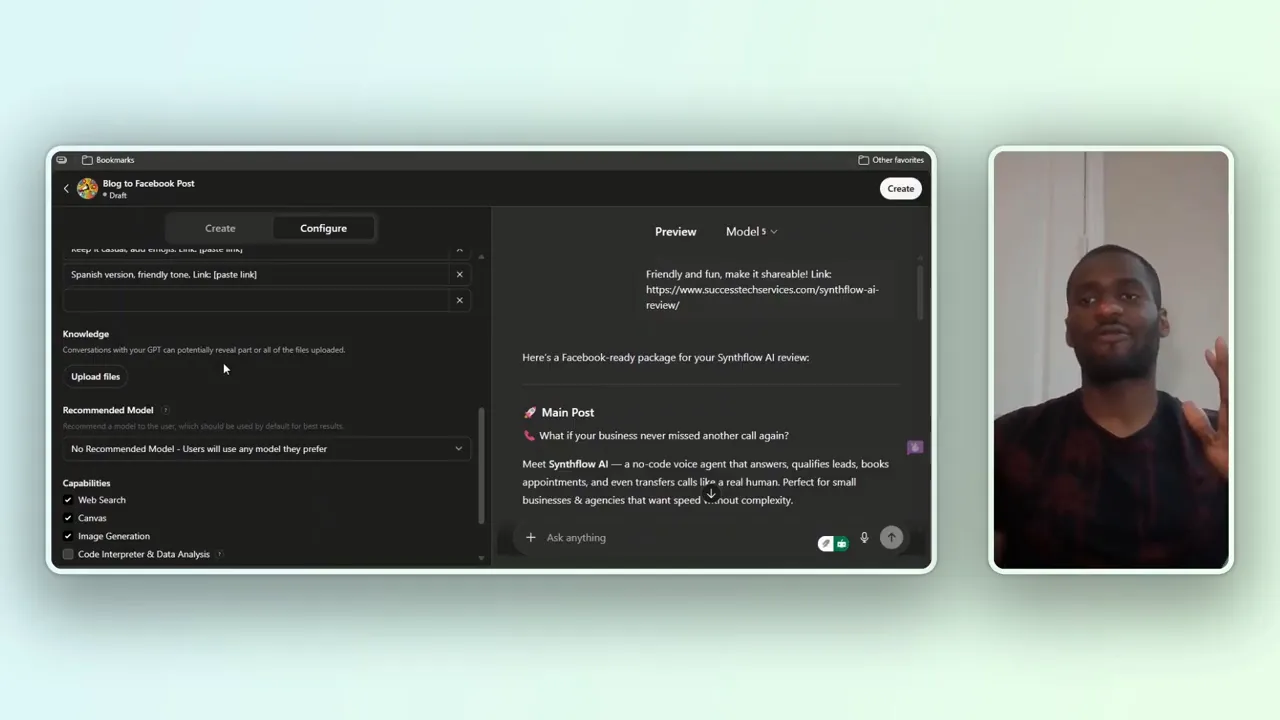
Choose capabilities your GPT needs:
- Web search (useful for up-to-date facts)
- Image generation (for visuals like post thumbnails)
- Canvas (for layout/graphics)
- Code interpreter (for data analysis and working with uploaded files)
I kept the model recommendation blank to let users pick the model they prefer, but selected web search, image generation, and the code interpreter so my GPT could fetch context, make images, and analyze uploads if needed.
Advanced: actions and APIs
You can add actions that let your GPT call external APIs, request keys, or perform authenticated operations. That gets into schemas, privacy policy text, and technical setup, which is powerful but out of scope for this basic walkthrough. There are plenty of tutorials if you want to go that route.
Sharing and publishing
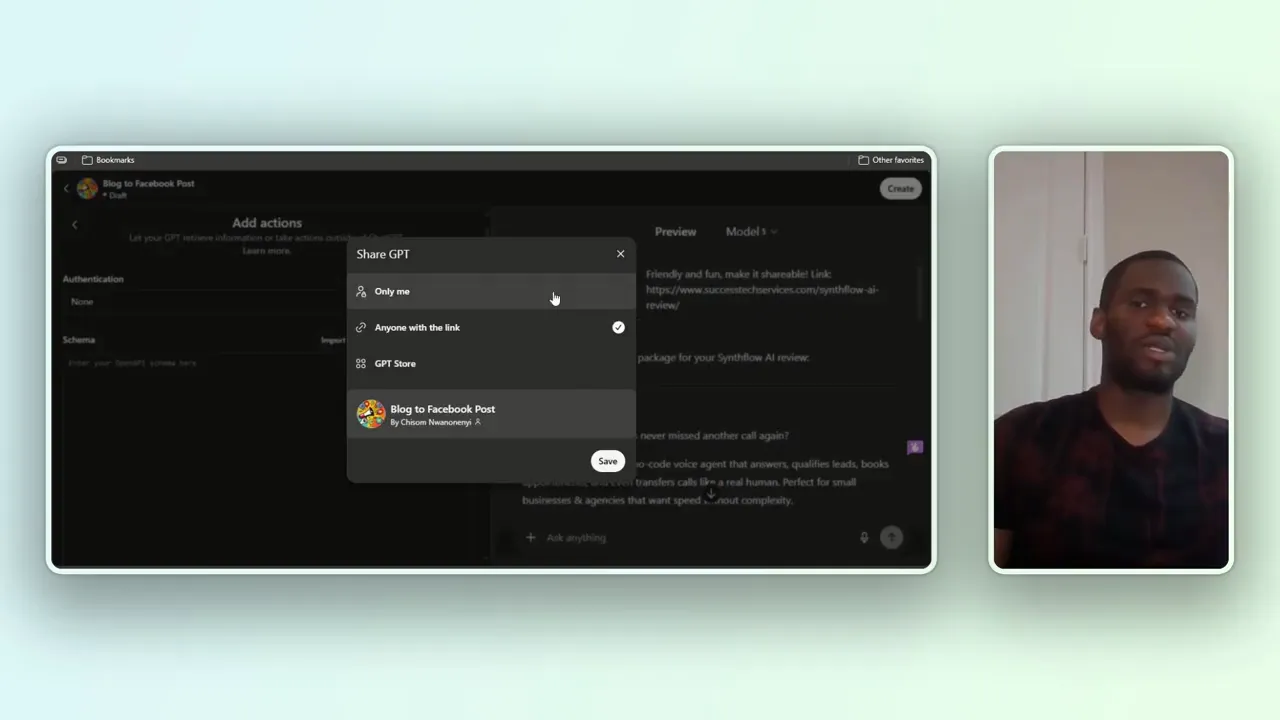
When you finish, decide who can use your GPT:
- Only me — private, for your own use.
- Anyone with a link — shareable but not searchable.
- Publish to GPT Store — makes your GPT discoverable.
For the demo I saved it and bookmarked the GPT. If you want people to use the GPT, publish it; if it uses private docs, keep it private.
Tips and best practices
- Start with a single clear outcome, e.g., “more link clicks and shares.” That keeps the GPT focused.
- Use conversation starters to make the first user interaction frictionless.
- Test with real inputs early (links, files) so you can see edge cases and wording adjustments.
- Don’t upload sensitive files if you plan to publish publicly.
- Choose capabilities that match your needs. Image generation for visuals, code interpreter for data work, and web search for live facts.
- If you need integrations (APIs), plan the authentication and privacy docs before publishing.
Wrapping up
Creating a custom GPT is fast and flexible. In minutes you can go from idea to fully configured tool that rewrites blog posts into social-ready content, generates images, and runs data analysis. I built “Blog to Facebook” as a practical example; try it or adapt this process for your own use cases.
If you build one, test it thoroughly and be mindful of privacy when uploading files or publishing. Happy building, and catch you in the next guide.