
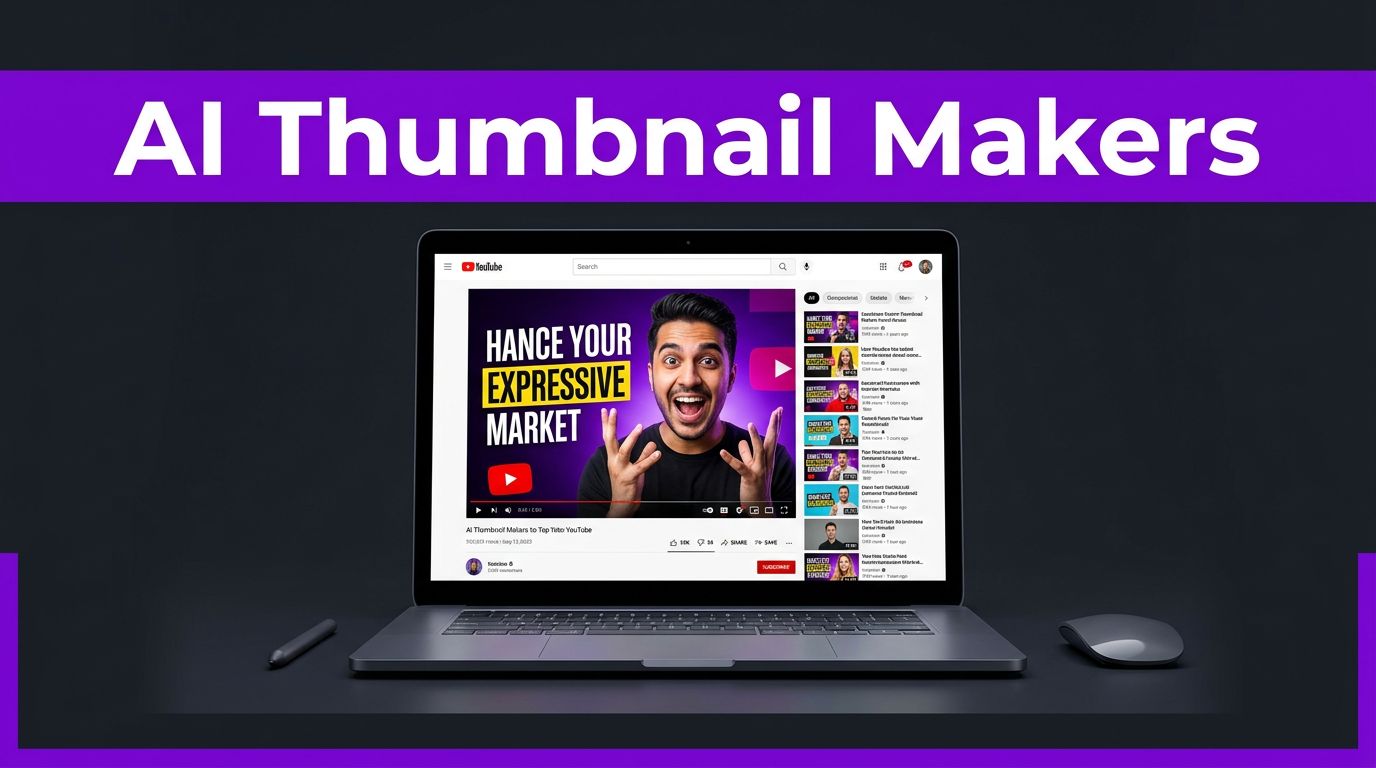


A strong video can still lose the first click if its thumbnail looks vague, crowded, or interchangeable. On YouTube’s Home and Suggested feeds, viewers make a fast decision before they hear a word of your intro.
AI thumbnail makers help a content creator accelerate ideation and explore more concepts. They don’t replace editorial judgment or channel knowledge. The right tool provides a useful starting point for refining the promise, face, text, and visual hierarchy into high-converting thumbnails before publishing.
What Dedicated Thumbnail Tools Do Better Than Generic Image Tools
A general image generator can make an attractive scene. A dedicated YouTube thumbnail generator is built around the actual packaging job: a 16:9 layout, a bold focal point, room for short text, and concepts that relate to a video title.
That distinction matters when your channel has a clear format. A finance creator may need a face beside one striking number. A gaming channel may need a recognizable character and a moment of tension. A tutorial channel might perform better with a before-and-after result than a reaction face.
Dedicated tools can also speed up repetitive work. You can upload a reference thumbnail, use style cloning, train a persona, generate several directions, or apply background removal. They can also turn a rough idea into a ready-to-edit composition. Still, the output can produce odd teeth, warped fingers, unreadable text, and expressions that don’t match your brand.
A thumbnail should communicate one clear promise at phone size. If viewers need to decode the image, the concept needs another pass.
Use AI to generate options, not to hand over final editorial control. Your title, audience expectations, and video content should decide which concept earns publication.
Compare Thumbnail Tools for Different Creator Workflows
The best choice depends on what you need after an AI thumbnail generator creates a concept. Some creators want a fast concept machine, while others need editing control, reusable templates, or video analysis.
| Tool | Best fit | Main limitation |
|---|---|---|
| Pikzels | Thumbnail-first YouTube concepts and personas | Credit usage can add up during experimentation |
| Canva | Template-led designs and brand-friendly manual edits | AI tools are not built solely for YouTube packaging |
| Adobe Photoshop | Detailed retouching and custom composites | Takes more time and design skill |
| ChatGPT | Brainstorming concepts and generating visual starting points | Needs human layout and text cleanup |
| WayinVideo | Finding moments in long videos before making a thumbnail | It is a video workflow tool, not a thumbnail-first app |
Pikzels for thumbnail-first creation
Pikzels is the clearest choice when you want a tool focused on YouTube thumbnail production. Its current pricing page explains the credit system and lists costs for core actions: 50 credits to train a Persona, 50 for a Style, 5 for analysis, 1 for title generation, and 10 to 20 credits per thumbnail.
Pikzels’ Persona feature supports smart portrait integration and facial consistency without a new photoshoot for every upload. Build it with clean source photos, then inspect every output closely. Its Style action supports style cloning, though strong face models can still change eye shape, skin texture, or expression.
The public pricing display currently includes an 18,000-credit option at $40 per month, or $28 per month on annual billing. Plans and offers can change, so check the live checkout page before committing. Also, account for the fact that credits require an active subscription to use.
Canva, Photoshop, and ChatGPT for hands-on control
Canva works well when your channel already has established fonts, colors, and layouts. Its template library gives beginners a friendly place to combine AI-generated assets with screenshots, cutouts, and readable text. For wider visual work beyond YouTube, compare these AI image generators for branded visuals before choosing a single platform.
Photoshop remains the stronger option for demanding edits. The design skills needed for masking, lighting, type placement, and retouching are greater. It offers the control a graphic designer would expect, but it won’t remove the need for a good concept. It also takes longer than a prompt-driven tool.
ChatGPT can help develop thumbnail angles, write prompt variations, and generate a visual base. It works best in a prompt-to-thumbnail workflow, rather than as a final thumbnail editor. YouTube packaging still needs precise layout decisions, and generic AI art often needs cleanup before it looks trustworthy at a glance.
WayinVideo belongs earlier in the workflow. Its video analysis and “Find Moments” features can help you locate a strong facial reaction or visual payoff from long footage. It offers 200 free credits at signup, but it isn’t a dedicated thumbnail maker.
Compare Credits, Free Limits, and Real Cost Per Video
A low monthly price can look attractive until you burn through credits on variations that never reach your channel. Five thumbnail attempts in Pikzels can use 50 to 100 credits before Persona or Style training enters the calculation.
Treat AI generation as an exploration budget. For data-backed clarity, estimate six attempts per thumbnail, 75 credits per finished thumbnail, and three weekly uploads. That equals 225 credits weekly, or about 900 monthly, so divide the subscription price by 12 finished thumbnails rather than one polished result in a product demo.
Free plans are useful for testing output quality, but their limits and prices change often. Pikzels’ reported trial allowances have varied across public sources, and watermark rules may apply. Don’t build a publishing schedule around a free quota until you see the terms inside your account.
Before paying, check these details:
- Generate thumbnails for three recent video topics, not only your favorite idea.
- Upload your own portrait and inspect face consistency at full size.
- Confirm that your plan supports exporting custom thumbnails at 1280 by 720 pixels and fits YouTube’s upload requirements.
- Test whether the tool can preserve your colors and layout without copying another creator too closely.
A current YouTube thumbnail size guide recommends 1280 by 720 pixels, a 16:9 aspect ratio, and files under 2 MB in JPG, PNG, or GIF format. Export rules can vary by plan, so verify the final file against YouTube’s current requirements before upload.
If you need help developing titles, prompts, and video angles before paying for another subscription, start with Free AI Tools.
Build Thumbnails That Invite the Right Click
High-converting thumbnails don’t depend on loud colors alone. They connect the title and image to the viewer’s problem quickly. A clean design can signal a stronger video than an overloaded one.
Start with one visual idea that matches the title’s promise. A creator exposing a bad laptop purchase could show the laptop, a disappointed expression, and one clear warning symbol. Product boxes, five logos, a paragraph of text, and extra arrows dilute that message.
Keep text short. Two to four strong words are easier to scan than a sentence. Let the title carry the detail while the thumbnail creates emotion, tension, contrast, or curiosity. For a method-focused video, the title can explain the process while the thumbnail shows the unexpected result.
Face thumbnails can work well, but they aren’t mandatory. A coding tutorial may perform better with a clear interface result, while a restoration video may need the transformed object. Choose the focal point that makes the video’s payoff obvious and supports the title.
Style cloning requires judgment. A thumbnail designer should study a successful example’s contrast, framing, and composition logic, but shouldn’t copy another creator’s identity, trademarked elements, or signature artwork. Protect your channel’s visual identity, and don’t chase viral thumbnails when imitation or sensationalism weakens clarity. Viewers should recognize your channel, not mistake it for someone else’s.
Test AI Thumbnail Variations Before Publishing
High-converting thumbnails don’t guarantee a higher click through rate. Results vary with traffic source, topic demand, audience loyalty, title, YouTube’s presentation, and viewer behavior.
Create two or three materially different concepts for useful A/B testing, not minor color changes. One variation might emphasize the outcome, while another highlights the problem. Keep the title stable when comparing versions so you can isolate what the image changed.
If your YouTube Studio account has Test & Compare available, use A/B testing for meaningful comparisons. Otherwise, record the thumbnail, title, traffic source, impressions, and CTR after enough impressions to reduce noise. Avoid judging a result after only a handful of views.
As a broad benchmark, vidIQ’s thumbnail CTR guidance places strong performance around 5% to 7%, while many channels sit closer to 3% to 4%. Your own baseline, impressions, traffic source, and retention data offer data-backed clarity that matters more than a universal CTR benchmark.
Watch retention alongside clicks. A dramatic thumbnail that attracts the wrong viewer can create a temporary CTR spike and weak satisfaction later. The strongest content packaging makes a promise the opening minute delivers.
A Fast, Repeatable Thumbnail Workflow
Use a human-guided automated workflow. Start with the video title and one audience emotion: fear of missing out, relief, surprise, confidence, or urgency. Then write three visual directions before opening any design tool.
Generate several rough concepts, but save only the directions that remain readable at a small size. Move the strongest design into Canva or Photoshop, depending on the design skills needed for text, color, masking, and retouching. Keep your channel’s font and color choices consistent so returning viewers recognize you.
Finally, view the thumbnail at roughly phone size. Check smart portrait integration and facial consistency, ensuring the subject still fits your channel’s intended persona. If the central idea disappears, remove elements rather than adding more. Human review gives AI-assisted work a studio quality finish, not a batch of random generated images.
Frequently Asked Questions
What is the best AI thumbnail maker for YouTube?
Pikzels is a strong choice for thumbnail-first concepts, personas, and smart portrait integration. Canva, Photoshop, and ChatGPT may be better when you need more manual control over branding, layout, or retouching.
Can AI thumbnail makers create finished YouTube thumbnails?
They can create useful starting points, but most outputs still need human review and editing. Check the facial consistency, text readability, visual hierarchy, and whether the design accurately represents the video before publishing.
How much does an AI thumbnail maker cost?
Pricing varies by subscription, credits, and export limits. Estimate the cost per finished thumbnail rather than relying only on the monthly price, since generating multiple variations can use credits quickly.
What size should a YouTube thumbnail be?
Use a 1280 by 720 pixel image with a 16:9 aspect ratio, and keep the file under 2 MB when possible. Export in JPG, PNG, or GIF format, then verify the current requirements inside YouTube before uploading.
How should I test AI-generated thumbnail variations?
Create two or three materially different concepts while keeping the title stable. Compare impressions, CTR, traffic source, and retention over enough data to reduce noise, rather than judging a thumbnail after only a few views.
Final Thoughts
These tools speed up the blank-page stage and give you more ideas to test. Pikzels stands out for creators who want persona tools and smart portrait integration, while Canva, Photoshop, and ChatGPT suit different levels of manual control.
Your best thumbnail should meet the standard for high-converting thumbnails: it clearly matches the title, looks credible on a small screen, and sets up a video that fulfills its promise.