

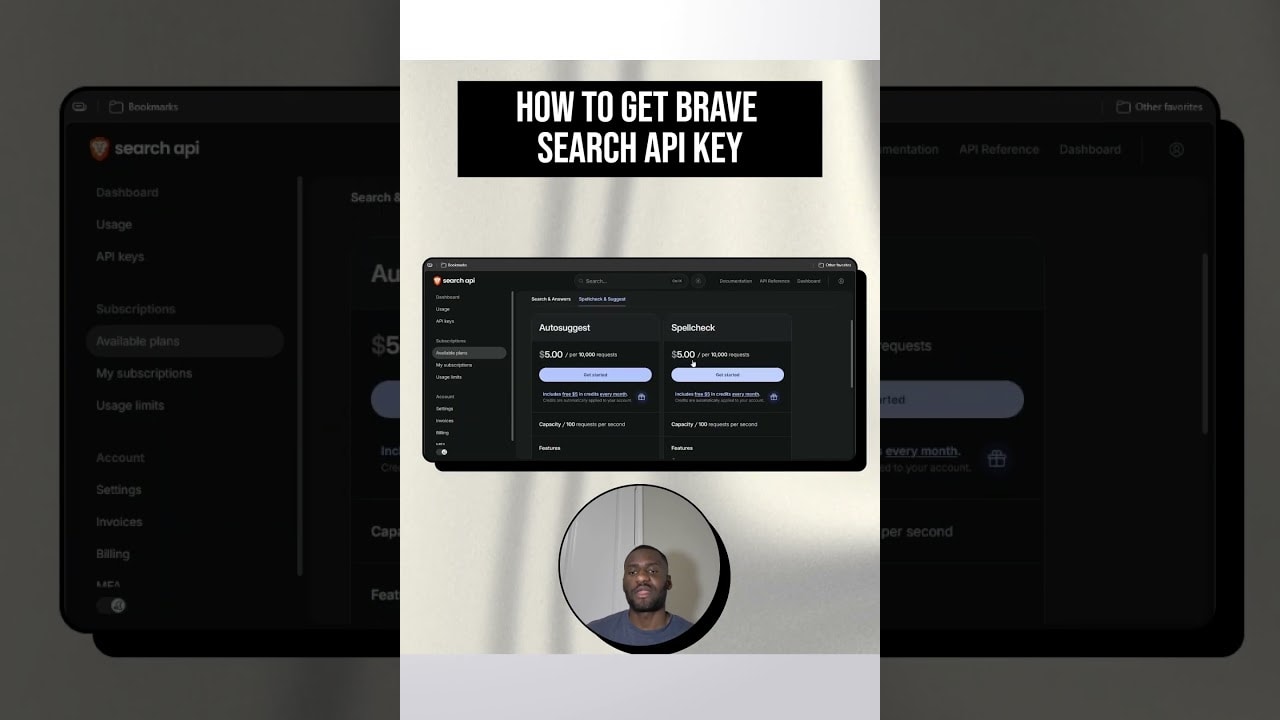
Brave Search is a solid option when you want search functionality with a privacy-first mindset. If you are building an app, website feature, or tool that needs search, you will likely want a Brave Search API key.
Best Free AI Writing Tools! |
|
🎁I Have Free AI Tools for You! |
| Access Now! |
Here is my step-by-step walkthrough for getting your key: signing up, verifying your email, choosing the right subscription plan, and generating an API key from the dashboard.
Table of Contents
- Step 1: Find Brave Search API access and go to the dashboard
- Step 2: Sign up and verify your email
- Step 3: Choose a subscription plan before creating an API key
- Step 4: Create your Brave Search API key
- Step 5: Use the API key in your Brave Search API integration
- FAQ
- Next step
Step 1: Find Brave Search API access and go to the dashboard
I start by searching for “Brave search API key” and landing on the Brave API dashboard. Before you can generate any key, you will need an account set up.
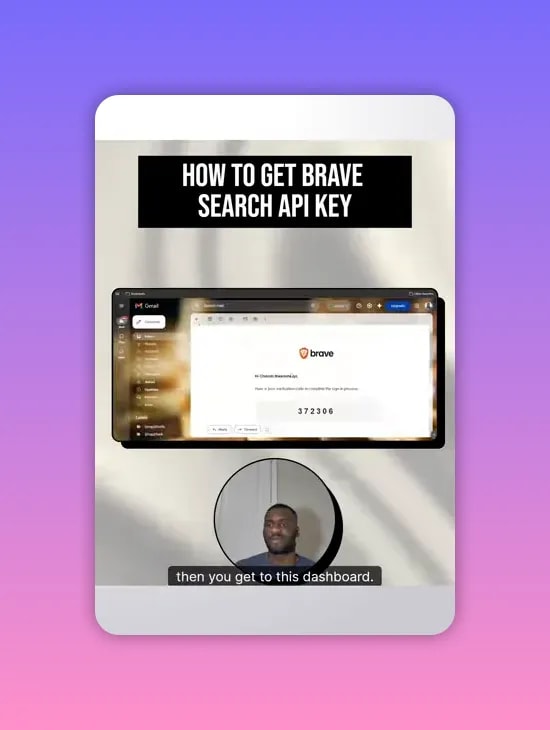
Step 2: Sign up and verify your email
On the sign-up page, I click the sign up button, then verify my email. Until the email is verified, you typically cannot access the dashboard area where API keys and subscriptions are managed.
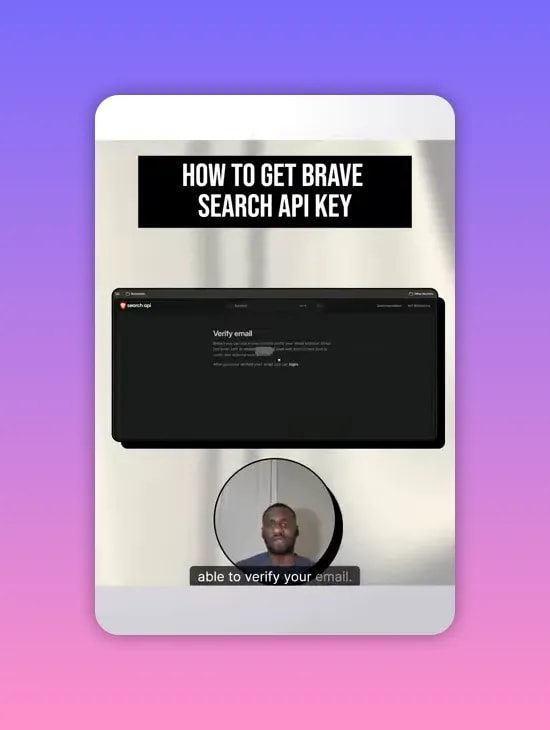
Step 3: Choose a subscription plan before creating an API key
Once my email is verified, I land in the dashboard. The key detail here is that Brave requires a plan selection under subscriptions before you can generate an API key.
In the dashboard, you will see available client options such as:
- Search
- Answers
- Spell check
- Suggest
I usually pick Search first because that is what I expect to use most.
For pricing, I selected a plan listed at $5 per 1,000 requests (as shown in the dashboard). Also, they do not begin charging until the search is actually being used through the API.
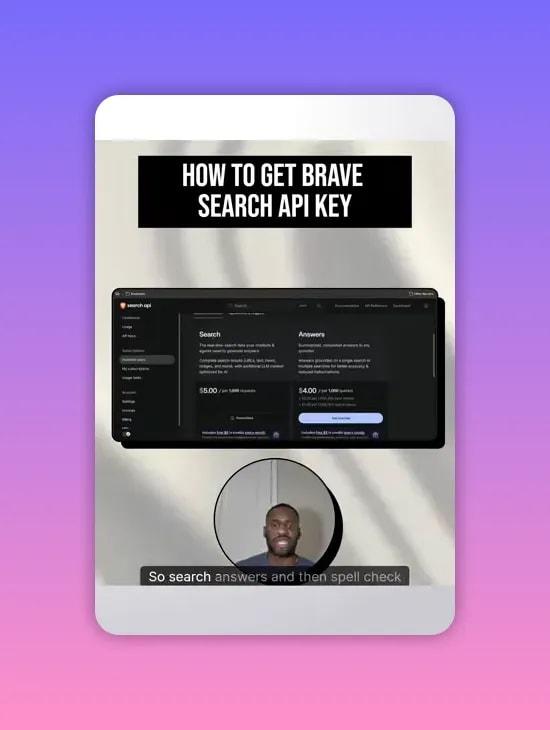
Quick tip: If you are only planning to add search results to your product, choose search. If you are building something more like direct “answer” responses, you can consider answers. In my case, I went with search.
Step 4: Create your Brave Search API key
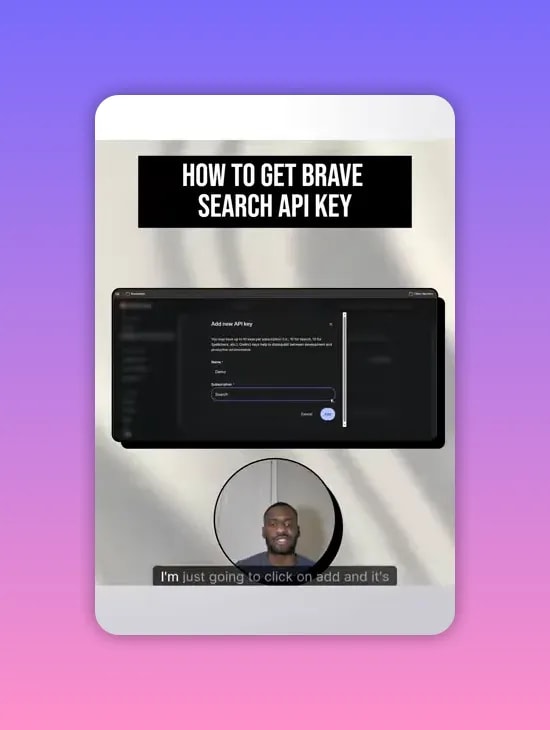
With the subscription selected, I navigate to the API keys section. You will see an option to add a new API key.
I click “Add API key” and then give it a name. I used simple names like “demo” and “subscription.” The name is just for your own organization.
Best Free AI Writing Tools! |
|
🎁I Have Free AI Tools for You! |
| Access Now! |
Then I select the subscription that I am using. In my case, it is search.
After I click add, the API key gets created right away. That is it.
Step 5: Use the API key in your Brave Search API integration
Once created, you can use the key in your Brave Search API requests wherever your application expects authentication.
If you are setting this up for privacy-focused search experiences, it helps to keep your key secured (for example, stored server-side and never exposed in client-side code).
FAQ
Why can’t I generate a Brave Search API key right away?
Which subscription should I choose: Search or Answers?
When does Brave start charging for the plan?
Can I create multiple API keys?
How do I keep my API key secure?
Next step
Once your Brave Search API key is created, you can move on to integrating it into your application logic for search, answers, spell checking, or suggestions. Start small, test the key with a simple request flow, and then scale up as needed.
Best Free AI Writing Tools! |
|
🎁I Have Free AI Tools for You! |
| Access Now! |